



EDITED 13.1.2023: Added a mention that Teams DLP file protection seems to be able to catch files from OneDrive with matched credentials that are attached to Teams messages after all. Nice!
Teams is an essential productivity platform for many of us. Every day, Teams chats and channel messages are used flexibly for all kinds of collaboration scenarios. Unfortunately these also include sharing credentials of various kinds in plain text – a clear-cut security concern.
What’s the issue, then? Well, consider the following four facts:
- Teams chats can be shared to external and internal users simultaneously while including all previous chat history.
- Teams teams can get new members of all kinds over time who get access to channel conversations from the time before they were added as a member.
- Unless their lifecycle is managed with retention policies, chat and channel messages never expire and are retained pretty much forever.
- Don’t underestimate the impact of a good safety net on individuals’ peace-of-mind, either. Accidentally entering a sensitive credential in a Teams chat or channel with tens, hundreds or thousands of people can be a considerable source of anxiety for people.
👉 I contend that it is almost always desirable to stop such actions for a second before information gets exposed and only proceed if policy allows it and with the user’s knowing consent.
This helps nurture trust in the tools we work with, creating a sense that the services we use “have our back” and play a clear role in keeping us secure.
So, we really want to make sure secrets and other types of credentials are kept out of Teams messages unless absolutely necessary. How to achieve this?
Read on to find out!
Teams DLP in a nutshell
Microsoft Purview offers Data Loss Prevention policies to help discover, monitor and manage the exposure and movements of sensitive information in various services. One of the supported services is Teams.
As of 1/2023, Teams DLP generally requires either full A5/E5/F5/G5, A5/E5/F5/G5 Compliance or equivalent licensing. (See the documentation for details)
Teams DLP supports looking for sensitive information types in chat and channel messages. If desired, the message can then be blocked with or without the possibility of overriding the block. Rule matches are logged and alerts can be generated from matches for investigation if desired.
The All Credentials SIT in a nutshell
In 2022 Microsoft released a new bundled entity sensitive information type called All Credentials, also shown as All Credential Types in some interfaces. It’s a powerful SIT that (as of 1/2023) contains 41 individual SITs for various kinds of credentials.

Included credential types range from generic ones such as general password to very specific ones like Azure Storage Account access key or Slack access token.
Relevant language used in context with the credential itself is used as supporting evidence for detecting credentials (for example, the word “password” or “pw”) with English and 27 other languages currently supported.
The All Credentials SIT plays a key part in making the discussed controls possible.
Implementing the policy
Let’s implement a Teams DLP policy with separate rules for internally and externally shared credentials – and then test it.
First, I’ll create a new custom DLP policy and give it a name. I suggest creating separate DLP policies for each service for clarity, ease-of-update and future-proofing purposes.

For location, I’ll select Teams chat and channel messages.
Note that I could limit the scope of the policy with distribution groups and even add excludes, but we’ll go with an All accounts scope for now.

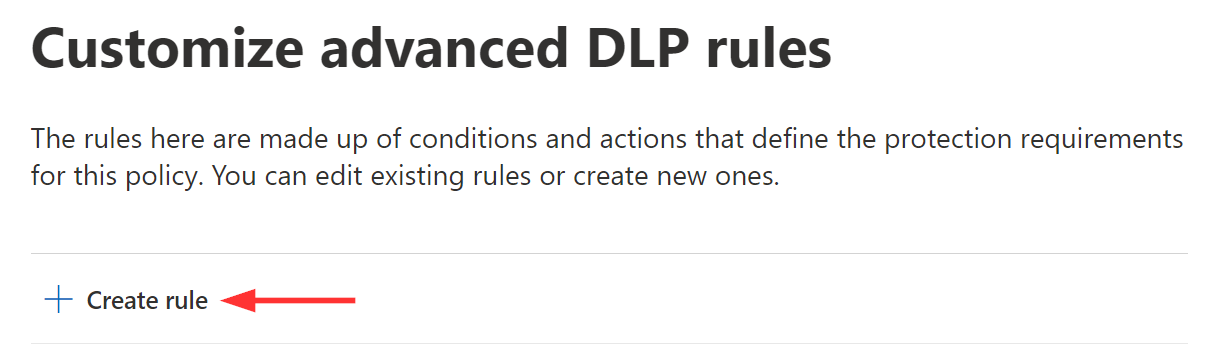
Now it’s time to create the DLP rules. I’ll select Create rule.
First, let’s give the rule a name. DLP rules are filterable in certain reports by name so I recommend adopting a naming convention that includes a few set pieces of information:
- The affected service
- Scope: Recipient type triggering the rule
- Scope: Sensitive information required to trigger the rule
- The action taken when the rule is triggered
In this case, I will create two rules and name them as follows:
Rule #1: Teams / External recipient / All credentials / Block
Rule #2: Teams / Internal recipient / All credentials / Block w/ override

To ensure only the desired users are in scope, I’ll set the conditions as shown in the image above:
Content is shared from Microsoft 365..
- Rule #1: ..with people outside my organization.
- Rule #2: ..only with people inside my organization.
Content contains any of these sensitive info types..
- All Credential Types (Medium confidence, 1 to Any)
After setting the scope, I need to configure the rule to restrict access. For both rules, I advocate blocking every recipient of the message, whether internal or external.

In a bit, we’ll facilitate purely internal sharing of credentials for special & authorized cases by allowing overrides – that’s coming up a bit later.
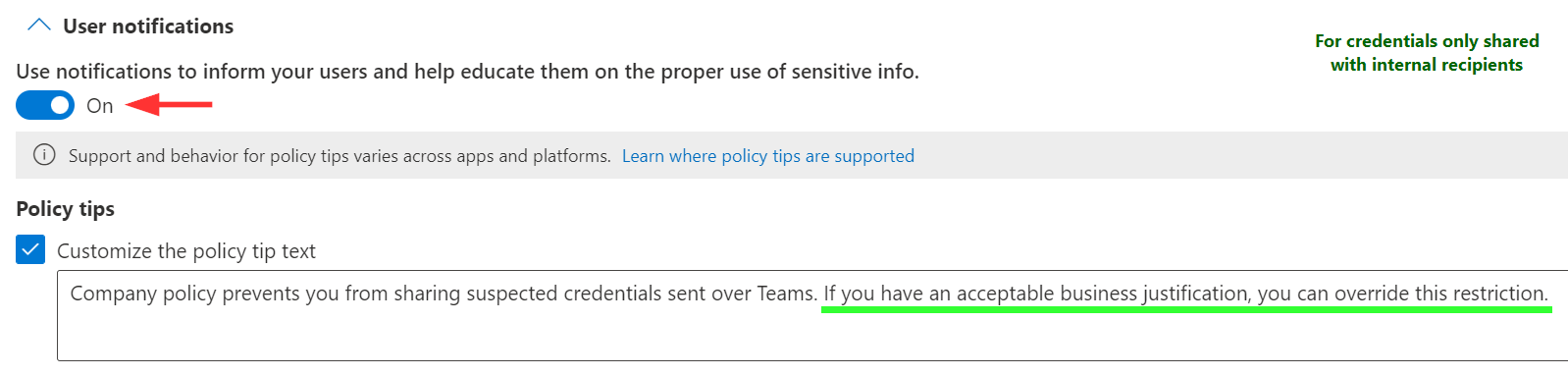
We want to show an educational policy tip to users when DLP restrictions are triggered for a message. I suggest differentiating the tips for Rule #1 and Rule #2 as detailed in the images below.
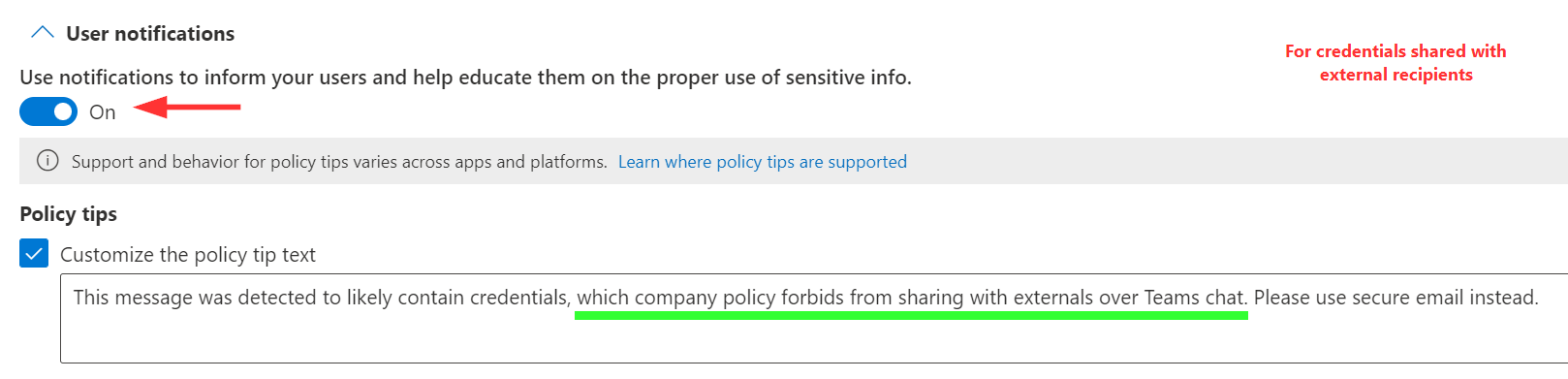
The tip for Rule #2 highlights that the user is allowed to override the restriction only if they have an actual justification for doing so.
This should make individuals pause and consider before proceeding, helping establish auditable intent for each sharing action.
Next, overrides. I suggest that for messages with external recipients that contain credentials, no overriding the block should be allowed.

For internals, we can be more lenient and allow overriding the block by providing a justification and also if users flag the rule match as a false positive.

My advice: When using Sensitive Info Types directly to apply restrictions, always prepare and design for a certain percentage of false positives. The only exceptions to are document fingerprint and Exact Data Match based SITs which due to their nature aren’t fuzzy about the content they match.
Finally, we need to think about reporting and alerts. If you want SecOps to take investigatory or remediation actions following a DLP rule match, configure the rule to create an alert. I suggest enabling alerts for Rule #1..
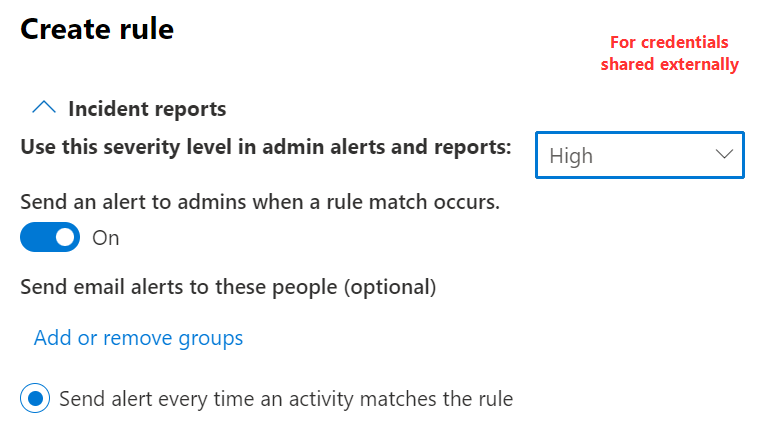
..but disabling them for Rule #2 and just have rule matches logged with medium severity, since credentials shared only with internals isn’t really exfiltration.
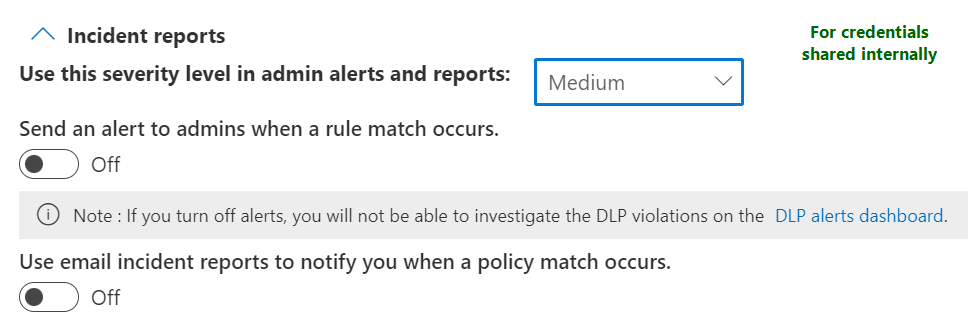
All DLP rule matches are logged and can be looked for using the Activity Explorer and other tools.
DLP alerts can now be investigated in the Microsoft 365 Defender portal just like alerts from Defender products. Multiple related alerts are bundled into incidents.

As of today, both DLP rule matches and DLP alerts can also be ingested to Microsoft Sentinel using the Microsoft 365 Defender connector:
- DLP rule matches are ingested into the CloudAppEvents table (ActionType equals “DLPRuleMatch”)
- DLP alerts and supporting evidence are ingested into the SecurityAlert table
With both rules now configured, let’s save the DLP policy and wait a while for it to take effect. We still have one more setting to configure.
Automatic file protection
Released in 2/2022, Teams DLP policies can now be configured to automatically extend their protection to any files shared in Teams chats and channel messages along with the message itself, using the same rules. This is usually desirable but has to be enabled separately.

To enable Automatic File Protection, we need to open the Data Loss Prevention page in the Microsoft Purview portal after creating our Teams DLP policy. There will be a new option to turn on the feature for all current and future Teams DLP policies.
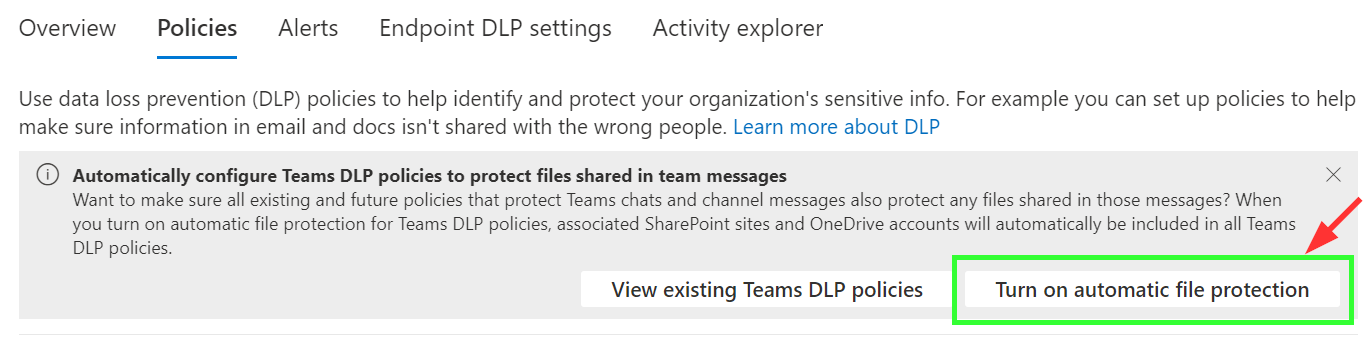
After toggling on the feature, we can see that it can also be turned off at will, so a rollback is easy if it comes to that.

Now, it’s time to do some testing.
The user experience
We’ll try three different use cases:
- Credential sent over chat to an external account
- Credential sent over chat to an internal account
- Credential shared in a channel message
- Credential shared in a file attached to a chat message
Credential sent over chat to an external account
This one’s the most important, so we’ll test it first. I sent a very generic password – essentially a string of gibberish – to an external recipient. The message was blocked within a second, which you can see below.
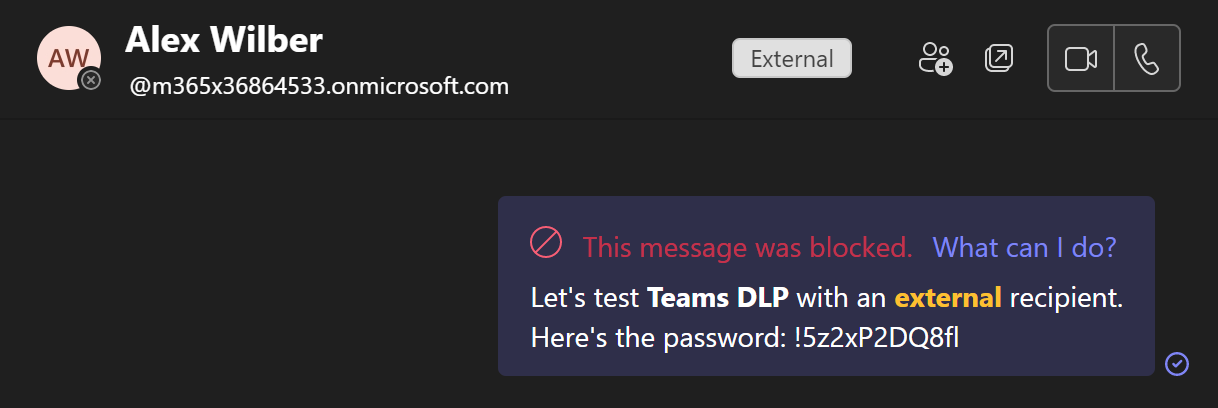
When pressing What can I do? I am presented with a new window, with additional information. For demo purposes, I left the policy tip for the external sharing scenario to its default setting so you could see the default policy tip message below.

Just like we intended, the block cannot be overridden when message recipients include externals. A user can still report the rule match as a false positive, but this won’t override the block.
When a message is blocked, users get a toast:

..along with an associated activity feed message:

As for the recipient, all they get is this:

Pressing the What’s this? link directs the recipient to this support.microsoft.com page.
Credential sent over chat to an internal account
Internal sharing should be treated a bit more leniently. Let’s see how it works out:
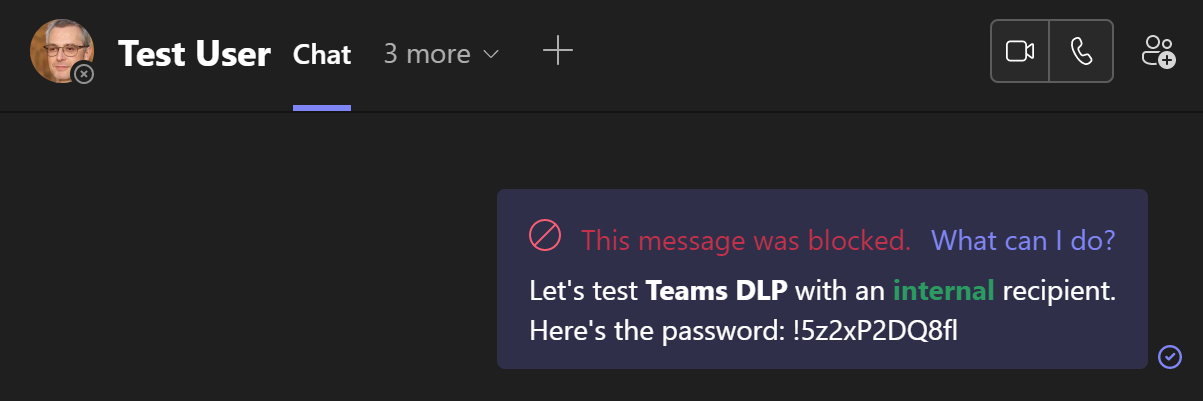
The message was blocked again, as expected. However, when checking out the additional information under What can I do? we can see both our custom policy tip and options to override the block either with a justification or by flagging the rule match as a false positive.
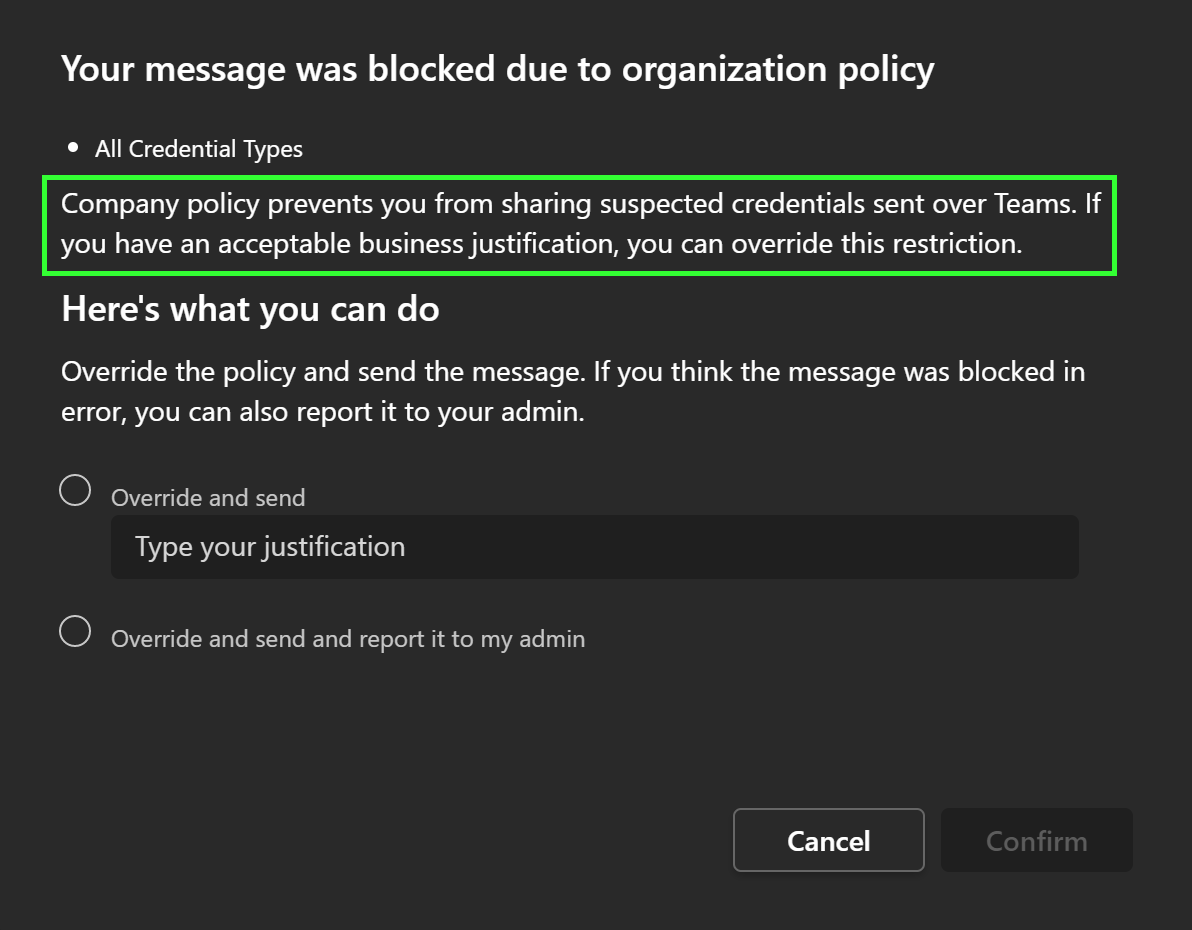
Seems like this scenario works as intended.
Both justifications and false positive overrides are logged in the DLP false positives and overrides report in the Microsoft Purview portal. They can also be viewed through the Activity Explorer.
Credential shared in a channel message
Here’s where I ran into some unexpected issues. Teams DLP policies based on the All Credentials SIT didn’t seem to take effect on any channel messages I posted – at least not within 10-15min of me posting the message.
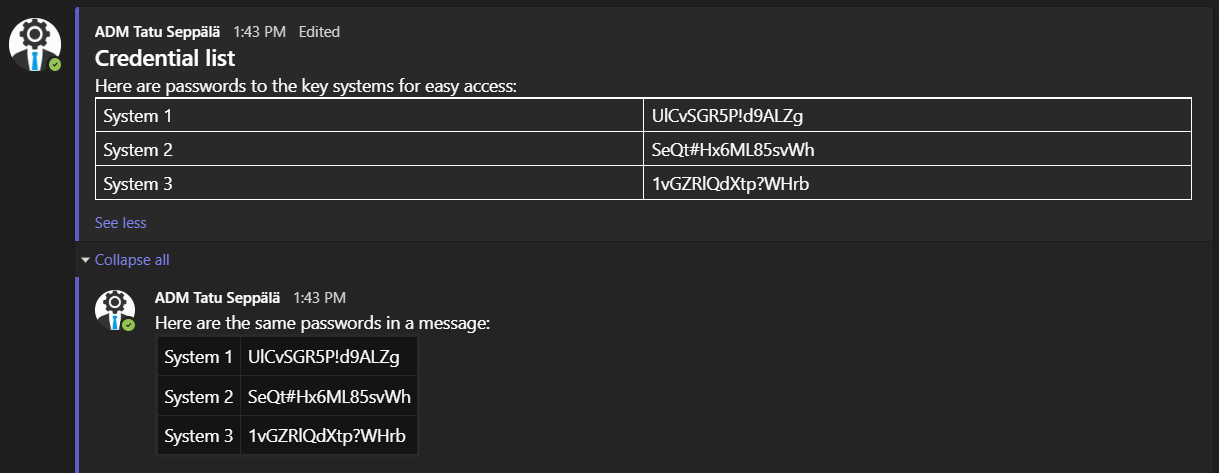
If this is a documented limitation, I didn’t come across the documentation after a bit of searching. Might have to do with the relative newness of the All Credentials SIT and with channel and user messages being stored in different places in the backend – I don’t know.
Update 8/2023: Later on I found out that Teams DLP policies need to be scoped to Microsoft 365 groups (or all users) in order for them to apply to standard or shared channel messages. For private channel messages, you either need to use security groups, distribution lists or “all users” scoping. More info here.
Credential shared in a file attached to a chat message
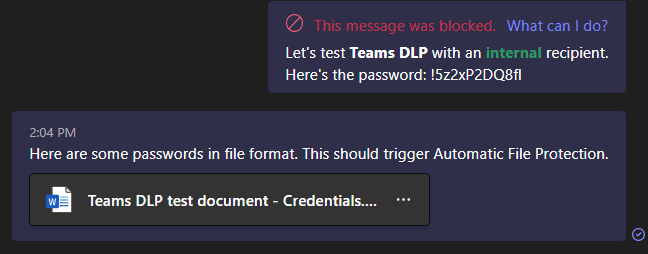
To try out Automatic File Protection with credential sharing, I created a quick demo document with a couple of fake passwords.

Sadly, I also had issues getting automatic file protection to trigger with this demo doc. The outcome was the same whether I shared it in a chat..
..or in a channel conversation. 🚫
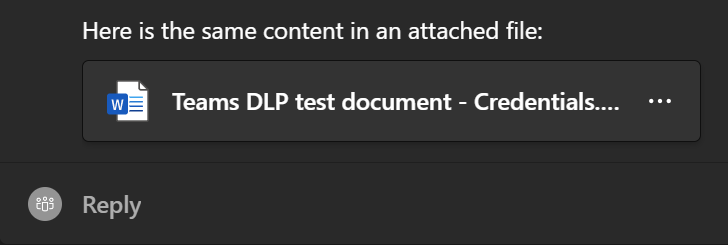
If I discover the reason for this missing functionality, I’ll update the article. Who knows, maybe I made a configuration mistake..
EDIT Jan 13th 2023: When working with a customer, I have actually now seen file protection in Teams working when looking for credentials in OneDrive files attached to messages. So it seems to work – just didn’t come in my test for some reason.
The importance of supporting evidence
Many of the individual credential SITs seem to require some kind of supporting evidence in form of specific language to trigger – at least when requiring medium confidence or better, as I did.
For an illustrative example of this, let’s take Azure Storage Account access keys.
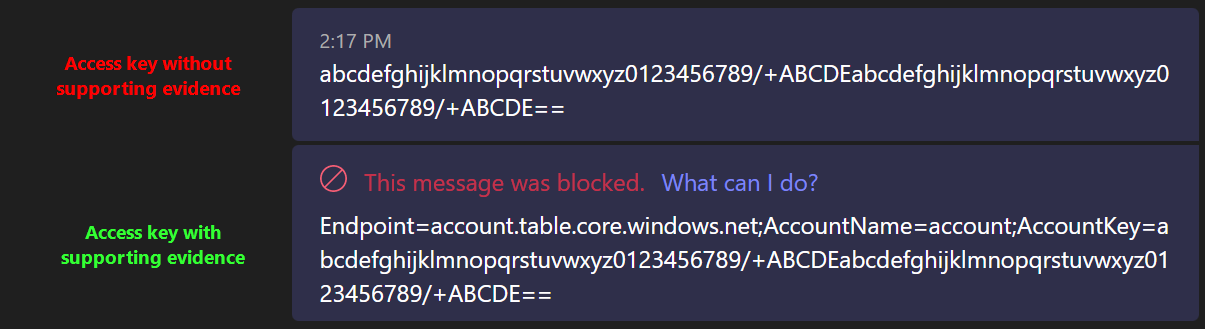
This is probably essential to help cut down on false positives. Just something to keep in mind.
Parting thoughts
To summarize – controlling credential sharing with Teams DLP works well enough now to make it worth implementing in production – but it doesn’t seem cover all the bases just yet. Hopefully this will get fixed over time.
Update 8/2023: Teams DLP works with standard and shared channel messages as well, as long as policies are scoped correctly to all users or through Microsoft 365 groups. Private channel messages can be reached by scoping policies through all users or security groups / distribution lists. See this documentation.
Credentials in chat messages -✅ Covered
Credentials in channel messages -✅ Covered
Credentials in files attached to chat messages -✅ Covered (observed on Jan 13th 2023)
Anyway, thanks for stopping by and have a great 2023! ✌️
 Seppala365.cloud