



The premiere version of Microsoft Teams was released on March 14, 2017.
Since then, the world has changed significantly and Teams along with it – especially after the widespread shift to remote work back in 2020. I’ve seen organizations starting to build an increased focus on making secure teamwork possible.
Some Teams security considerations have been present even well before the recent years, while widespread hybrid and remote work coupled with cloud-centric collaboration and content creation has brought its own flavors to the mix.
The improved toolkit available to organizations for protecting teamwork has also played a role and the understanding of the risks involved with our present way of doing things has matured greatly along the way. Now, in the early days of 2023, I think it’s a great time to pull some threads together.
Apart from various technical controls, I think the key focus point when hardening Teams for secure teamwork is actually to put people first and always building with a smooth user experience in mind.
Why? Well, let’s be honest with ourselves for a second:
If secure ways of working are unclear and difficult while insecure behavior is easy and convenient, an undesirable outcome is predetermined – especially if we’re talking about behaviors at the level of thousands of people.
The goal, then, should be to ensure as few “wrong” options as possible are offered in each day-to-day scenario, while also providing guidance and reinforcement for correct behaviors through various means – including automated tips, controls and even restrictions.
Identity and guest access
Flexible collaboration and communication among people regardless of their physical location, device, or time is at the center of Teams.
Most organizations’ teams include a varying number of guest users. Some guests only need access temporarily – for example, for a project – and some permanently, like as a result of ongoing collaboration between organizations.
But what happens to a guest account when its owner no longer needs to be a member of any teams? Even if guest accounts are removed from all teams, they don’t just leave the environment (i.e. the tenant). There may, in fact, be a significant number of B2B guest accounts collecting dust in any given fairly active medium to large tenant. On the other hand, the rights of guest accounts to act in the tenant are not necessarily limited appropriately by default.
If the settings for guest users are not hardened properly, a guest user can apparently even map out the entire structure of the tenant with all of its groups and users – see Daniel Chronlund’s blog for a chilling example.
Fortunately, guest access in Teams can be taken under control from several different angles: getting rid of unused guest accounts automatically using Access Reviews, giving team owners reminders and necessary information to remove unnecessary guest accounts, and limiting the rights of guest accounts in the tenant to only what is necessary.
For Teams specifically, guest access can thankfully be taken control of from various angles:
- By automatically getting rid of unused guest accounts through Azure AD Access Reviews and giving prompt to the team owners as well as necessary information to trim unnecessary guests from the teams.
- By limiting the group of organizations from which guest accounts can be invited to the organization’s teams.
- By controlling the ability to invite guests to Teams by applying sensitivity labels to teams, while also limiting the creation of external sharing links in the SharePoint Online workspace.
- By leveraging shared channels with trusted partners instead of traditional Teams B2B guest usage, allowing participating organizations to stick their own identities without the need for guest accounts.
- By integrating SharePoint Online and OneDrive guest access with Azure AD B2B, giving lifecycle controls to all external file sharing link users and creating guest accounts for these access rights.
The last point is important to understand from the perspective of Teams, and may not be obvious to everyone. External sharing links created from SharePoint and OneDrive (such as the Files section of Teams teams) do not expire by default, and external identities using them are not required to have strong authentication.
Speaking of stale sharing link expiration, you’ll want to configure that too – and ensure that sharing links cannot be scoped to Anyone.
Here’s why, and I’m quoting Microsoft:
People using an Anyone link don’t have to authenticate, and their access can’t be audited.
Sharing & permissions in the SharePoint modern experience (learn.microsoft.com)
People should be guided to think of the intended audience for a second or two before sharing company data – not a big ask, I reckon.
As for the Azure AD B2B integration – without implementing it, tracking and controlling external identities using sharing links is difficult or semi-impossible.
Access management
For many organizations, one of the efforts in recent years has been the implementation of Azure AD Conditional Access (CA) policies to get a grip on the conditions in which an organization’s services can be accessed. CA remains a fundamental building block in building a secure collaboration platform.
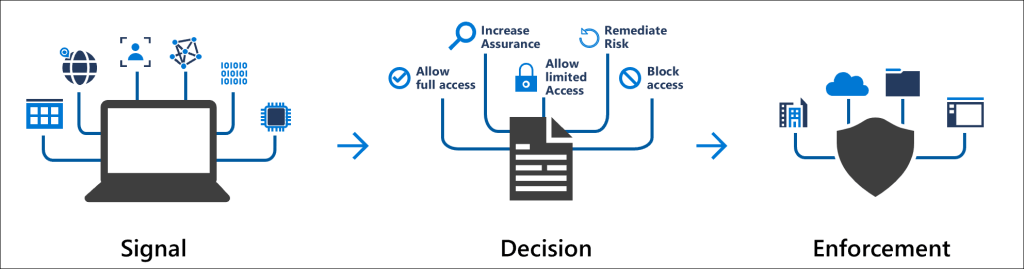
By requiring strong authentication, a device managed by the organization, acceptance of terms and conditions, or any of several other options depending on the situation and user, the use of Teams and other Microsoft cloud applications can be closely controlled.
It is also recommended to incorporate machine learning through Identity Protection to dynamically assess the risk level of individuals trying to access Teams, SharePoint, OneDrive and other services more comprehensively than through rigid rules alone, and to strengthen access controls as appropriate.
Defender for Cloud Apps adds its own flavors to the stew, such as the ability block access to your Microsoft 365 services from Tor network exit nodes, outdated web browsers, known bot networks or through anonymizing proxies. Check out my earlier blog for a taste of this one!

Files and collaboration
Yes, access management is important – but it is not enough by itself. That is because the work done in Teams tends to coalesce into files – and files can be taken out of Teams to other places, either as part of an established process, but also in an uncontrolled way.
That’s why it’s important to apply sensitivity labels to valuable files, Teams workspaces, and Teams-organized meetings, Power BI contents and any other supported content handled in Teams. Sensitivity labels are provided by Microsoft Purview Information Protection.
Sensitivity labeled documents, workspaces, and meetings can be protected appropriately to their confidential nature, without the need for the person themselves to understand the technical nitty-gritty in detail.
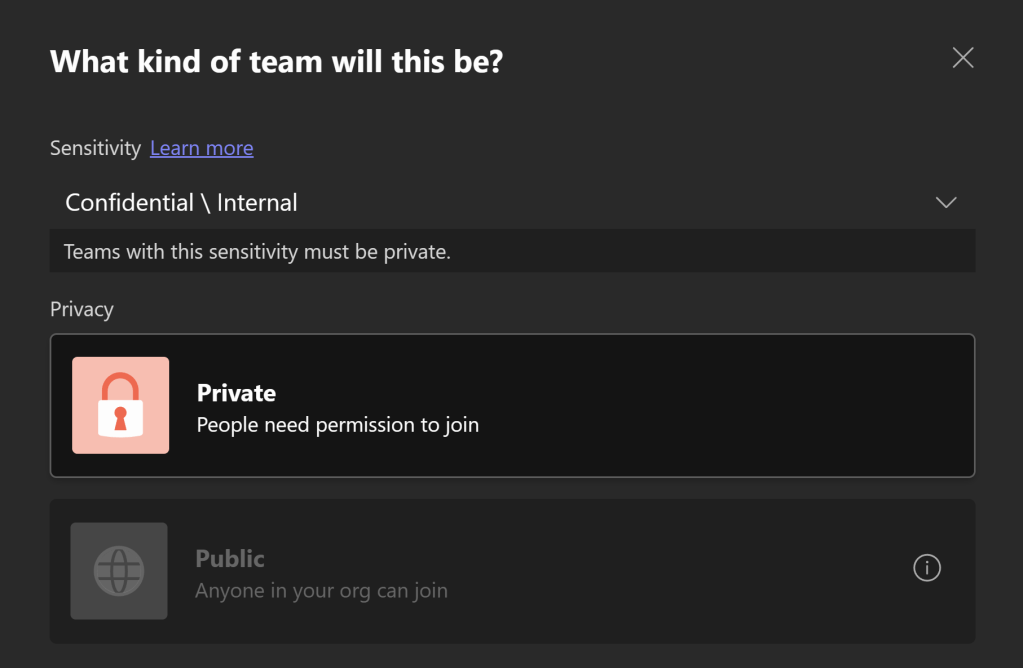
In the case of files, protection follows through encryption even outside of the Teams workspace, regardless of where the file ends up as a result of human actions.
I want to stress that implementing data-level protection and visibility is absolutely critical for ensuring end-to-end, Defense in Depth security for digital collaboration, in Teams or otherwise. We simply cannot put all of our faith in hardened containers and MFA-protected identities alone to do the job anymore when data itself can traverse so easily out into the wild.
As mentioned before, teaching people to do the right thing while limiting the biggest risks is a key to success. Data Loss Prevention (DLP) policies for Teams, SharePoint and OneDrive help do just that, guiding individuals to adhere to your organization’s information handling practices when they need tips the most – for example, when they are sharing a confidential or personally identifiable document with an external recipient.
At the same time, Data Loss Prevention can prevent the most risky information movements in Teams – and, if desired, allow the person to bypass the block with a logged explanation. A good example of this is the sharing of different identification information, such as passwords, in Teams chats, which is best guided by instruction and technical controls, directing it towards encrypted email or other, safer communication channels required by the organization.
My advice for getting the most out of DLP is to take it slow. You don’t want to cook up a set of “block everything” DLP policies and roll them out to all of your Teams users cold turkey. Instead, take the time to understand existing sensitive data movements in Teams and elsewhere with audit-mode policies. After building understanding and visibility, you can start to gradually nudge people to do the right thing over time – initially with policy tips only and later with blocks that can be overridden by providing an audited justification.
As mentioned, the files handled in Teams are saved in SharePoint or OneDrive, depending on the context. Many third-party file storage services, such as Google Drive and Dropbox are also allowed by default. This too may be subject to intervention if it cannot be monitored and controlled.
Communication
In Teams, communication focuses on meetings, chats and channel conversations. Teams meetings have traditionally been a mixed bag. Some people say they have too many of them, while others barely attend them. Most people participate in Teams meetings at least sometimes.
A variety of topics can be discussed in meetings, many of which may be very confidential indeed. To ensure safer collaboration in these spaces, we now have the option to apply sensitivity labels to meetings and appointments. Through the sensitivity label applied to a Teams meeting, purposeful meeting options can automatically be applied to without requiring any action from the meeting organizer, other than choosing the label during meeting creation.

With sensitivity labels, you can pre-define and apply fixed settings for several aspects of Teams meetings:
- Whether ort not end-to-end encryption is applied
- Are presentation rights restricted to selected individuals
- If a watermark should be added to video content shared in the meeting
- Should chat only be available during the meeting
- Can content in the meeting chat be copied to the clipboard
- Which types of attendees can bypass the lobby
You can also attach a meeting sensitivity label to the team’s own sensitivity label, ensuring all channel meetings in the team get enforced hardening in a consistent manner.
When it comes to Teams chats, there are a few things to consider. If the default settings are not changed, your Teams users can message freely with Skype and consumer Teams users, while consumer Teams users can also proactively contact your Teams users unless otherwise restricted – even though Teams has luckily started showing a warning for previously unknown individuals trying to start a conversation with you.
It’s worth considering whether such free communication with consumer accounts is necessary in your organization. Usually is not.
Each Teams channel has an email address, and content can be sent to channel conversations via email messages. A security-oriented organization limits or disables this sending capability to only allowed business areas and senders, if at all.
It’s also worth looking at the settings of individual teams at least once. In an un-customizable team, regular members can, among other things, add and remove channels, add and remove tabs from channels, and add connectors for external integrations.

In large teams, it’s also good to consider whether @-mention usage is allowed to be used by members to target the entire team. An malicious actor sending harmful links to, say, a thousand people via @-mention could cause damage before anyone has time to remove it.
Harmful links propagated through Teams chats can be checked and secured with Defender for Office 365 Safe Links policies, which check clicked links at time-of-click and stop users from proceeding if malicious content is identified.
Apps and integrations
Teams is not just a communication application, but rather a central hub for your workday with a wide and diverse app portfolio. As of 2/2023, there are almost 2000 apps available from Microsoft and third-party providers – and the number grows month by month.
By default, all Teams users can install any of these apps without admin approval. Upon closer examination of the privacy policies and other information offered by the app manufacturers (or not offered, in some cases, which is troubling in itself), you might notice various shortcomings which can give you pause.
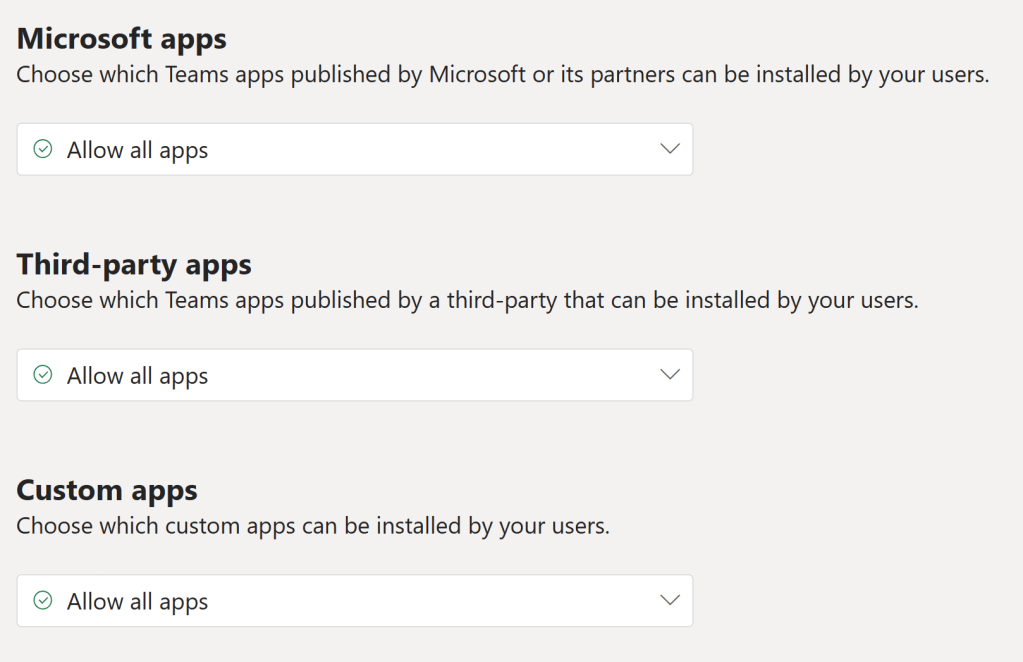
Many third-party Teams apps transfer the information you enter – that is, your organization’s data! – outside of your geographical area’s borders. For many European countries at least, this is a no-go and can compromise regulatory compliance.
Some application developers state that the information entered into the application can be accessed by humans in the course of admin duties. Others may share the information given to the app with advertisers and other third parties. Many do not have clear privacy policies or the links directing to the manufacturer’s pages from Teams’ admin portal are broken. To work more securely and responsibly with Teams, it is important to only provide users with a selection of apps that they can use unreservedly in the course of their work. Check out my blog on controlling Teams app sprawl to get further into this.
Microsoft’s own Power Platform ecosystem is also rapidly growing roots in Teams and becoming deeply intertwined. This is especially the case with Power Automate workflows, which power anything both quick template automations served through the Teams Apps menu (under Workflows) and approval workflows, served through the Approvals app.

The Teams apps for Power Automate, Power Apps, and Power BI are an easy way to get started with easy citizen development and should be enabled – but in a secure, managed way, as with anything else.
For starters, without a carefully designed Power Platform Data Policy, an inventive user could use Power Automate workflows in Teams to transfer data from workspaces to unapproved locations and systems – and not necessarily even maliciously, but out of curiosity or inventiveness as well.
I’m a big fan of Power Platform and strongly feel that these awesome services should not be hidden from use because of security concerns – they are crucial elements helping us build towards more efficient and meaningful work that gives people opportunities to automate and streamline their own – and their colleagues! – work in ways that were previously only dreamed of in the break room.
People and culture
After all this technical talk, the most important thing by far is to remember the human being. Employees of organizations using Teams need to understand three things:
- The “why?” – communicate the challenging digital environment we work in now, and why security cannot be achieved with technology alone.
- The “how?” – tell people in simple terms what is expected of them and set a good example by involving everyone from C-levels down in the effort.
- The “what’s in it for me?” – ultimately, secure work practices aren’t just meant to shield the organization. Demonstrating a basic level of security awareness is an important and valued attribute of a modern professional that is quickly becoming more of a “must have” and less of a luxury.
People can simultaneously be the strongest and weakest link in every organization’s security posture. No surprise then that Microsoft’s Cloud Adoption Framework talks about the rising discipline of People Security in clear terms.

Active involvement from and guidance for individuals helps create a positive outlook towards information security and nourishes the idea of information security as a central part of today’s digital collaboration in general.
At its best, sharpened knowledge of secure work practices in Teams and elsewhere can be a distinguishing skill for modern professionals in all fields, which is already required in many organizations.
One proven model is to run an internal pioneer program for champions and proactive messengers within the organization, attracting volunteers to learn about new and secure ways of working and having these champions share the lessons learned in their own work local teams and communities. Advice is often listened to in a unique way when it comes from a familiar face compared to edicts distributed from “up high”, after all.
Therefore, investing in training and sharing knowledge with your people about secure teamwork and collaboration is worthwhile – and having peace of mind in our daily toils is surely valuable for all of us as well.
 Seppala365.cloud