



Has your organization made an effort to enhance data security while discovering, classifying and protecting content according to its sensitivity?
Many haven’t, but that might be about to change. I think it’s the perfect time to consider the impact ubiquitous AI assistants and Copilots will have on the discoverability of the critical contents of your data estate.
Over-permissioned, unclassified sensitive files – previously mostly shielded from undue exposure for example by being forgotten deep in a Microsoft Teams team’s SharePoint site’s folder structure – could before long be crawled and have their data offered up by a host of emerging Copilot capabilities.

In Microsoft 365, Teams teams specifically have a tendency to become an uncontrolled dumping yard of information that hangs around year after year, being exposed to all new members in a team. Some teams can get quite large (or even org-wide) over the years and their SharePoint sites are rarely kept tidy in the process. Information piles up, neglected and forgotten..
..well, at least until it starts getting activated again by LLM-driven Copilots, which absolutely don’t care how hidden the data is as long as a person’s user account has permission to access it.
Aside from the general undesirability of unwanted internal data exposure through Copilots and other AI services that have broad access to your organization’s data, I have come to believe that the real key resource at stake is people’s trust in technology.

And trust, as we know, is difficult to gain but easy to lose. This, ultimately, is why I think it is critical to establish the correct data security practices before broadly implementing certain AI services like Microsoft’s 365 Copilot.
So, which steps should we take to prepare for what’s coming? There is no definitive catch-all list, but we can identify some of the fundamentals for Microsoft 365 Copilot specifically, which should mostly be applicable to other such services as well:
- Understand how Microsoft 365 Copilot interacts with your data security controls
- Check the default and maximum sharing permissions for SharePoint Online and OneDrive
- Discover accumulations of sensitive files with broad permissions
- Start raising awareness around sensitive information in files
- Classify and protect confidential files, email and other data
- Clean up the clutter – manage the lifecycle of your data
The bells and whistles

To start us off, here’s a direct quote from Microsoft on the data Copilots can access:
Data used by Copilot for an authenticated user is scoped to the documents and data that are already visible to them through existing Microsoft 365 role-based access controls.
Data, Privacy, and Security for Microsoft 365 Copilot | Microsoft Learn
This statement is really key to understand correctly. In this context, “visible” does not refer to data literally visible to people through the user interface of Teams, SharePoint and so forth. Instead, it refers to data people have at least read permissions to in those services, whether or not it’s so far been effortlessly observable to them in their daily context or not.
I would wager that most of the documents in an organization’s SharePoint Online estate are dormant, untapped by most or even all of the user accounts permissioned to read it. Some documents might have been active initially when they were relevant but have since stopped requiring constant access. A lot of content might never have been accessed at all after being uploaded. The permissions to those documents – the visibility – is still there.
To get a quick handle on the magnitude of constant growth in your Microsoft 365 data estate, an easy place to start is to take a look at the site usage data in your tenant’s Microsoft 365 Admin Portal and set the scope of the reports to 180 days. Then, take a look at the following metrics :
- The difference between the number of total files 180 days ago and now.
- The difference between the amount of storage used 180 days ago versus now.
You can get exact values per date by placing your mouse cursor over the visual.

When looking at your data, you will probably notice that there are way more files in total than files that are active. In the old world, only files people bothered to look up really mattered and dormant data remained obscure.
One of the great promises of AI-driven Copilot services taps into this fact by enabling a service to tap into all of the data available to a person so information, once produced, can be put to work effectively and not lost.
On the other hand, there’s also a whole lot of data that should not be exposed as broadly through its permissions as it actually is, but that until now this hasn’t caused any fuss either. This is because at work, people rarely try to poke around to find out the full scope of their permissions and what they can access that they shouldn’t be able to.
For Microsoft 365 Copilot and other such services, security by obscurity simply doesn’t cut it anymore. I believe organizations need to understand the reason for this with clear eyes before proceeding to the next steps.
Let’s start with a few words on defaults.
Check your defaults
As I mentioned, Microsoft 365 Copilot respects the permissions Entra ID user accounts have to data in SharePoint Online and OneDrive.
This might give you a warm and fuzzy feeling until you realize that the default sharing settings for these two services look like this..

..and the default sharing link settings at least used to look like this.
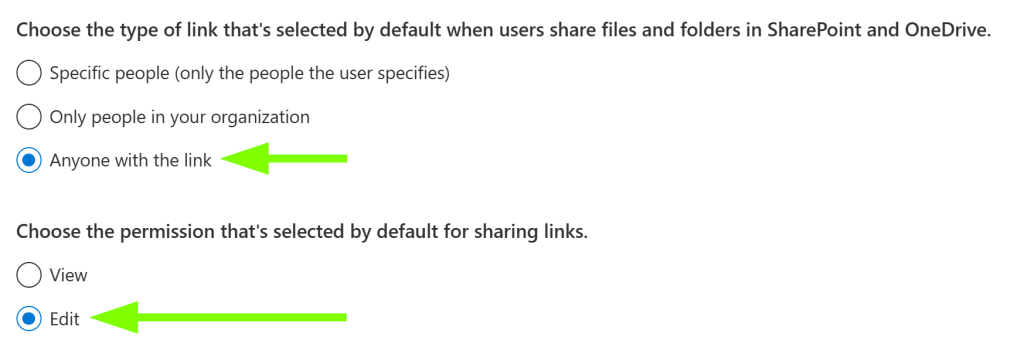
Unfortunately they still do, for many tenants.
If your tenant hasn’t had these settings configured to a more sane standard, you’re likely going to have a ton of data of all shapes and sizes shared more loosely than is necessary.
The saving grace here is that even if an external identity has permissions to your data through a sharing link, their tenant’s Microsoft 365 Copilot will not surface your tenant’s data in their interactions. In other words, a user interacting with M365 Copilot will only get data from relevant documents in the current tenant.
Under the hood Microsoft 365 tenant has something called a Copilot orchestrator instance that uses Microsoft Search to fetch data and limit data visibility to the correct tenant.

I’ll take their word for it.
This leaves internally overshared documents – which, as far as Microsoft Search documentation goes also includes sharing links.
This is what Microsoft has to say on the matter:
Copilot only surfaces organizational data to which individual users have at least view permissions. It’s important that you’re using the permission models available in Microsoft 365 services, such as SharePoint, to help ensure the right users or groups have the right access to the right content within your organization.
How does Copilot use your proprietary business data? (September 11th 2023)
I agree. To get a grip on user permissions, you’ll need to start by tending to your default settings and then by understanding where over-permissioned sensitive files have already accumulated.
Discover accumulations of sensitive files with broad permissions

Understanding and managing over-permissioned data-at-rest (stuff you already have in your SharePoint and OneDrive, shared internally with everyone or very broadly) is surprisingly difficult to accomplish.
To keep this brief, I identified at least two ways that can help find out where such files might be accumulated:
- Content Search
- Microsoft Defender for Cloud Apps (MDCA) File Policies
Let’s see if they are up to the task.
Content Search
This powerful Compliance portal tool comes with two options for shaping queries to search for files at scale: a drop-down menu style query builder and a KQL editor.
Ideally, we would like to use it to discover any files shared with the entire organization – or, if you’ve configured compliance boundaries, such files from users we’re permitted to search through.
The easy and fast query builder covers some, but not nearly all possible use cases – and most of the options relate to searching for email instead of files.

Some of the more advanced queries require you to swallow your pride and open up the eDicovery keywords & queries documentation to find out how to compose the necessary KQL queries to accomplish your search. Yes, I know it’s dry. It gets easier once you get used to it. 😉

You can type up eDiscovery queries to surgically find information shared broadly inside your organization. You can also refine your query to only look for files that contain sensitive information.
The KQL editor helps by automatically suggesting supported syntax and operators when you type.
In theory, to look specifically for content that has been shared with all internal users, I thought we could leverage the SharedWithInternal property offered by the KQL editor – an example is below.

This query should word, but in fact does not. The SharedWithInternal property does exist, but not all valid properties are searchable in eDiscovery tools, as Microsoft states in the searchable site properties article:

An another, supported property is available – SharedWithUsersOWSUser. The catch is that this one can only be used to find files shared with specific individuals.
I tried to see if we can work around the issue by using a wildcard (*), to get a picture of how many files are shared with at least one internal user. Seems like we can.
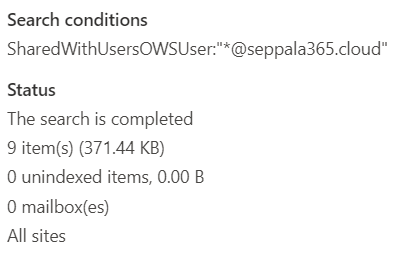
From the results of the search, we get a rough idea of the SharePoint sites and OneDrive drives on which shared content has accumulated. Governance actions still need to be taken separately from other tools.

MDCA File Policies
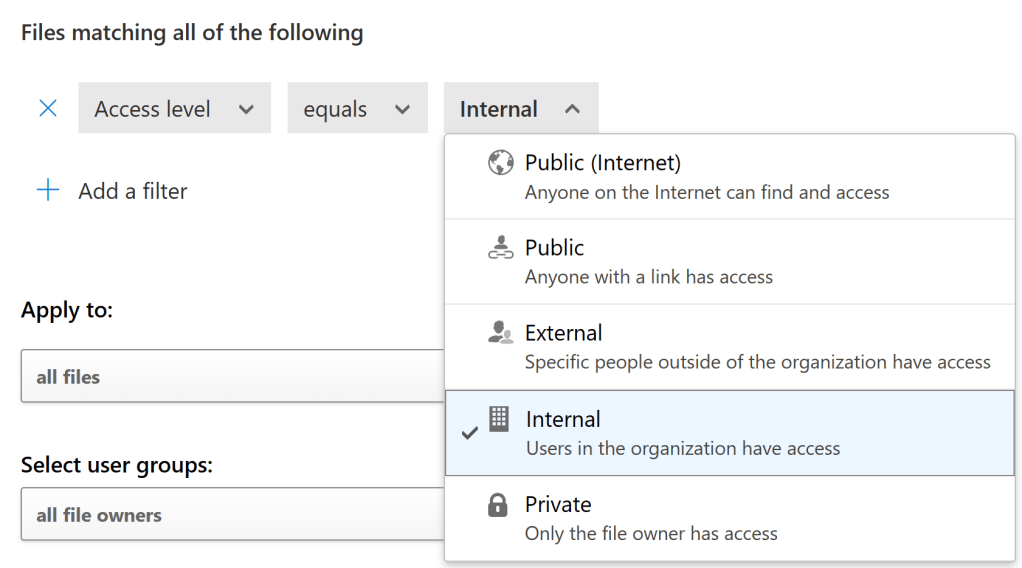
For granular visibility over time to specific types of documents, you can also tap into File Policies in MDCA. You can configure them to silently look for matches to defined conditions without taking any governance actions.
A useful side benefit is that you can easily tune an existing discovery-only file policy to remove all sharing links to discovered files if you determine this is necessary.
As a downside, File Policies intentionally crawl files slowly over time and aren’t built to implement sweeping governance actions to thousands of files in an instant. You can remove some of these protections (and that’s what they are!) by asking Microsoft support nicely.
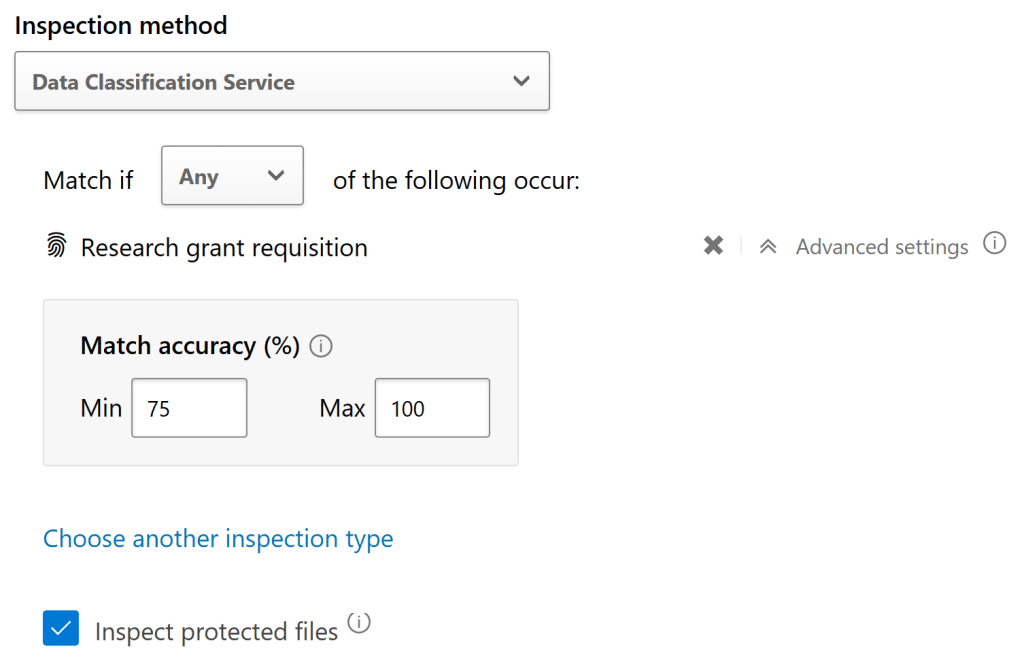
I wouldn’t rely on File Policies alone either to get the job done. It’s tough to know when they have produced a “full scan” of your entire data estate due to their continuous functionality and sluggish daily file scan rate. They are a nice additional tool to have in the box as part of the strategy, though.

Here’s a quick example of what a File Policy Match report looks like. You can filter the results by access level even if you didn’t control for that in policy conditions.

You can also use the Make Private action or undertake other governance actions on individual files if you wish.

All in all, it still seems to me like we are missing a comprehensive over-shared internal document auditing and governance capability for data-at-rest. I hope there is one and I just don’t know about it yet. 🙂
If you have a good approach for this (through Graph API etc.), please let me know!
Start raising awareness around sensitive information in files

This one’s pretty straightforward.
There’s a higher likelihood people will handle business data and manage its permissions according to best practices if you consistently remind them to do so.
DLP policy tips help do this and I recommend using them thoughtfully across all supported services – that is, in Exchange Online, OneDrive, SharePoint Online, Teams, Power BI and on your Windows & macOS endpoints.

Classify and protect confidential files, email and other data

Microsoft 365 Copilot needs a person to have the View, Open, Read (VIEW) permission to documents encrypted with Microsoft Purview Information Protection sensitivity labels to access their contents.
EDIT 11/23: ..and according to new information, Copy (EXTRACT) is required as well. You can read more about that permission here.
This permission can be limited by using sensitivity labels with encryption configured. You could, for example, create a specialized label that only includes the View and Copy permissions for employees in HR.
When this label is then applied to documents, only HR users would be able to turn up content from these documents in Microsoft 365 Copilot even if others would have permissions to access the doc through a sharing link or direct permissions.
While that covers M365 Copilot itself, there’s still the issue of plugins, which are an important part of the value proposition and leverage programmatic access instead of the user’s View permission.
What if we need to exclude certain content from being accessed by specifically by plugins for Microsoft 365 Apps that tap into Copilot for Microsoft 365 capabilities?

This can be accomplished by creating a sensitivity label with custom permissions that excludes the Allow Macros (OBJMODEL) permission, which Copilot plugins rely on to access information.
Note: This permission is included in all pre-defined encryption permission levels from Co-owner through Viewer so you’ll definitely need to implement custom permissions to make this happen.
My advice would be to only go this route if absolutely necessary, as blocking programmatic access to files can have a detrimental effect on collaboration experiences.
To summarize, if you want to make sure certain content is only usable by Copilot and its plugins for certain roles or departments, create dedicated sensitivity labels with permissions only for these groups. Then, work with people to help them use these labels correctly.
Addition on 8/2024: Microsoft has indicated in various blog posts that eventually sensitivity labels will be able to control Copilot for Microsoft 365’s ability to enumerate content even without encryption. Seems like labels will be the key control for Copilot data security going forward.
Clean up the clutter – manage the lifecycle of your data

This is the “sweep your desk” tip. Just because something is old doesn’t mean if it’s valuable.
If a file exists in Microsoft 365 and people have permissions to it, the contents can still come up in a Copilot interaction no matter how deep in a deprecated, dusty old SharePoint site the file happens to be.
You basically have two options for managing the lifecycle of data at scale through Microsoft Purview Data Lifecycle Management – on the service-level with retention policies or on the document level through retention labels.
My suggestion? Try to figure out which pre-2020 data you really need to keep for whatever purpose and start helping people get rid of the rest.
I covered data lifecycle management in more detail in my earlier blog: Information protection & governance with Microsoft 365 #4: Information governance & automatic sensitivity-based retention labeling – Seppala365.cloud
There’s still time to act
Even if your organization isn’t set to get on the Microsoft 365 Copilot plan when it’s available (the preview has been notoriously exclusive), it’s still a good time to take a look at the state of your tenant’s file permissions and protections.
Free-flowing collaboration can be a force multiplier for many organizations. Having the proper guardrails and guidance in place help make it sustainable (and keep us responsible) in the long run.
 Seppala365.cloud