



- Connect to Dataverse
- Fetch table (entity) metadata
- Audit status for all tables
- Filtering for unaudited tables
- Create CSV reports
As a Power Platform or Dynamics 365 admin, you’ll likely find yourself wondering which Dataverse tables are currently enabled for auditing for a given environment.
Well, I was curious so I took a look. As of January 2025, when you create a regular Power Platform environment with a Dataverse database and the tables in the Common Data Model are provisioned, 44 of them have auditing enabled by default, while 718 do not.
You should know that there are surprising and significant gaps in the tables that are audited by default. For example, you would think that tables like Security Role, Team, User and Business Unit would always be audited out-of-the-box, right?
🚫 Nope.

I needed an easy and repeatable method to get a clear overview of the current auditing posture for all tables in an environment. A cup of coffee ☕ and some tinkering later I found it – and now I’m sharing it with you.
Here’s how you report on the auditing posture of Dataverse tables with PowerShell.
Connect to Dataverse
First, you’ll need to install the Microsoft.Xrm.Tooling.CrmConnector.PowerShell module.
Install-Module -Name Microsoft.Xrm.Tooling.CrmConnector.PowerShell -Scope CurrentUser
ℹ️ At the time of writing this on 1/2025, this module doesn’t support PowerShell Core or PowerShell 7. Use PowerShell 5.1 instead.
Connect to the environment you want to check and save the connection parameters to a variable.
- To see the tables audited by default, make sure you connect to a freshly created, uncustomized environment.
- The -InteractiveMode switch makes the command use OAuth authentication, which supports modern strong authentication methods, Conditional Access enforcement etc.
$conn = Get-CrmConnection -InteractiveMode
An interactive authentication menu will appear. Enable the Display list of available to organizations setting. This allows you to choose the environment you want to connect to in the next step.

If you turned on the suggested setting, you’ll first need to authenticate against Entra ID. Then, you’ll get a list of environments you have access to. Select the one you want to check from the list and select Login.

With this, authentication is done. Your connection parameters are saved in the $conn variable, which you’ll use to authenticate the commands you run.
🤓 Nerdy details
Aside from the actual access token used for authentication under the CurrentAccessToken parameter, the $conn variable contains a host of other information you might care about – for example the environment’s unique name under ConnectedOrgUniqueName, the environment’s guid under EnvironmentId and the environment’s public Dataverse API endpoints under ConnectedOrgPublishedEndpoints.
🪙 Bonus tip: After connecting, you can see all of the commands available to you by grabbing them into a variable.
$cmds = Get-Help *crm* | sort name -Descending
$cmds | select Name, Synopsis | ogv
OGV at the end there is short for Out-GridView. It gives you the output of the command in a nice filterable and scrollable window. Here, you can easily filter for Get/Set/other types of commands on the fly.

Fetch table (entity) metadata
Next, pull the metadata for all tables into a variable so we can work with it effectively. Notice how we authenticate the command with $conn.
$entitymetadata = Get-CrmEntityAllMetadata -conn $conn
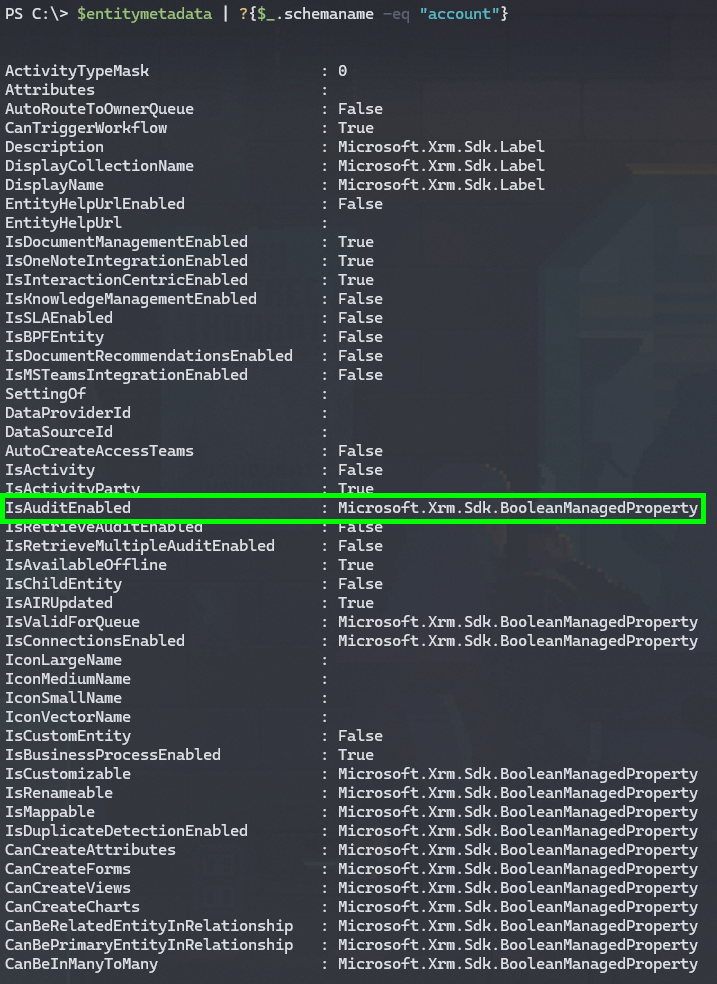
There’s a *lot* of metadata for each table. You might want to take a closer look at a single table to get an idea of the full scope of it before we proceed. Let’s use the Account table as an example.
$entitymetadata | ?{$_.schemaname -eq "account"}
Here’s a small subset of the metadata for a single table. Make a note of the IsAuditEnabled attribute. It’s important for this use case.
Audit status for all tables
To get a clean look at the audit status of each table, let’s refine a new variable from the full set of table metadata.
$auditStatus = $entitymetadata | select `
@{Name='TableDisplayName';Expression={$_.DisplayName.UserLocalizedLabel.Label}},`
SchemaName,`
@{Name='AuditEnabled';Expression={$_.IsAuditEnabled.Value}},`
@{Name='AuditCanBeChanged';Expression={$_.IsAuditEnabled.CanBeChanged}}`
| sort TableDisplayName
ℹ️ Note
Some of the required values are contained under other parent attributes in the data.
For example, the information on whether a table is currently audited is under IsAuditEnabled –> Value. This is why in the command you create custom attributes with the syntax @{Name=’CustomAttributeName’;Expression={$_.Attribute.Value}}
If you take a look at the refined report by running the name of the variable ($auditStatus) as a command, you’ll find you now have a pretty easy to read report on the audit status of each table.
In the image below, I filtered out the tables without a display name for clarity – they are normally at the start of the report due to the sorting used.

Filtering for unaudited tables
From here, it’s only one more step to identify the tables that aren’t yet audited (but could be):
$tablesUnaudited = $auditStatus | Where-Object {$_.AuditEnabled -eq $false -and $_.AuditCanBeChanged -eq $true} | sort TableDisplayName

Create CSV reports
If you wish, you can export the reports as CSV files with:
# Fetch environment friendly name from connection parameters
$environmentName = $conn.ConnectedOrgFriendlyName

# Export a report of audit status for all tables
$fileNameFull = "Dataverse-AuditStatus-AllTables-"+$environmentName+".csv"
$filePathFull = "C:\temp\"+$fileNameFull
$auditStatus | export-csv $filepathFull -Encoding UTF8 -NTI

# Export a report of audit status per table (only for tables that aren't yet audited but can be)
$fileNameUnaudited = "Dataverse-AuditStatus-UnauditedTables-"+$environmentName+".csv"
$filePathUnaudited = "C:\temp\"+$fileNameUnaudited
$tablesUnaudited | export-csv $filepathUnaudited -Encoding UTF8 -NTI
Exporting the reports in the universal CSV format makes it easy to pull the data into Excel, Power BI ec. and build a nice report to serve as a cheat sheet or to help keep track of progress during audit normalization efforts and similar undertakings.

That’s all for this quick one – please let me know if it was useful. ✌️
 Seppala365.cloud