



Organizations have commonly been accumulating data in Microsoft 365 services for an extended period of time when the time comes to start planning for data-level protection through Information Protection sensitivity labeling. Often a majority of existing content is homed in SharePoint Online and OneDrive.
In these situations, building towards applying a consistent label baseline to the current data estate might take a significant amount of time. That’s even if you implement both client-side and service-side auto-labeling, both of which rely on sensitive information types and classifiers to target content – and make use of the on-premises AIP scanner to label content still homed there before its eventual possible migration to the cloud.
Chances are that after all this, there will still be a big chunk of content eligible for labeling that will not get labeled any time soon because of two factors:
- Nobody’s actively interacting with it, so client-side auto-labeling and default labels are out of contention.
- The content doesn’t contain any specific identifiable sensitive information types that the organization has set up, which makes service-side auto-labeling a no-go.
The issue, then, is assorted heaps of data-at-rest that are not being interacted with.
I’m here to tell you that these files, too, can effectively be brought into the fold by applying a desired baseline sensitivity label to unlabeled files in the cloud. With what?
Well, with Defender for Cloud Apps – and it’s actually rather simple to boot.
Disclaimer: I probably don’t need to say this but please do not use this article by itself to implement anything in production. There are usually exceptions and various other factors to carefully consider in real environments. And with that out of the way…
Laying down the baseline
First, I’m going to assume a few things:
- Sensitivity labels have been created and distributed with one or more Label Policy
- The Information Protection integration in DfCA has been turned on
First off, let’s create a new File policy and give it a descriptive name, such as Baseline sensitivity label for data-at-rest (SPO, OD). Severity can remain low.

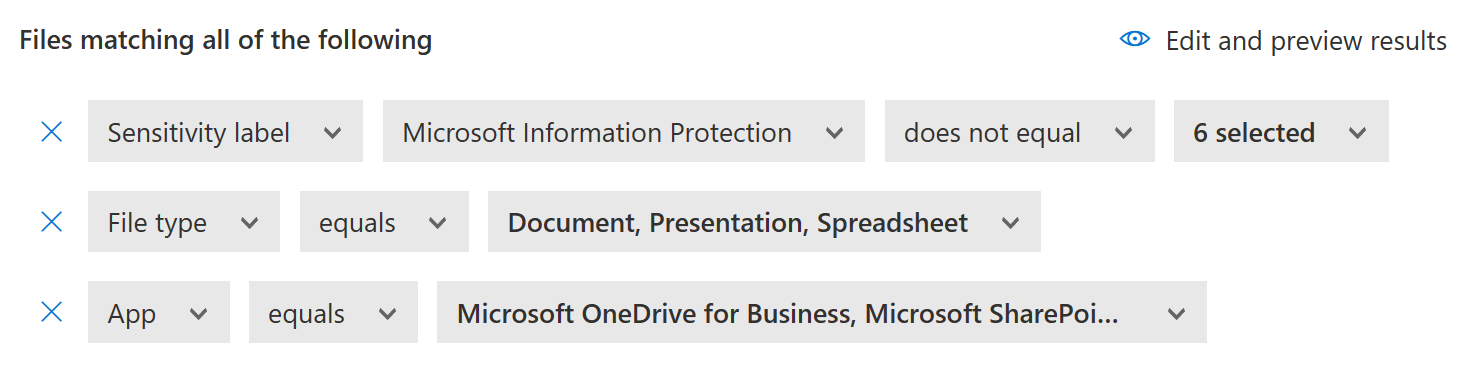
To scope the policy, we will look for the following:
- Sensitivity label (Microsoft Information Protection) does not equal [choose all published labels]
- File type equals Document, Presentation, Spreadsheet
- App equals Microsoft OneDrive for Business, Microsoft SharePoint.
Note: If you have other connected cloud apps (currently Box and Google Workspace) that have sensitivity label application as an available governance action, you are able to add them as well.
Then continuing on with the configuration:
Apply to: Depends on your needs. For the broadest scope, select All files
Select user groups: Again, limit it if necessary. Otherwise it’s All file owners
Inspection method: None, since we’re not looking to identify specific data inside of files aside from the sensitivity label applied to them – or rather, lack of one.
Alerts: Don’t create unless you specifically need to.
Governance actions: (For both OneDrive & SharePoint Online) Apply sensitivity label: [Your baseline label]
Also make sure Override user-defined labels is not checked. We don’t want to accidentally change any manually-applied labels even though labeled files shouldn’t be in the scope in the first place.

Then, create the policy. DfCA will start going through files in SharePoint Online and OneDrive looking for unlabeled content. Allow a day or two for it to do its thing, though – results won’t pop up instantly and policy matches will drizzle in over time.
Considerations
A few assorted notes related to this approach:
- This is somewhat obvious, but only file types that support sensitivity labels can be labeled by Defender for Cloud Apps. You can find a list here.
- If you want to do a one-off run of baseline label application and want to make sure you only target “stale” files that aren’t going to still be worked on while the policy targets them, add a Last modified condition to the file policy with the date set to a day or a week (or more) into the past from the current day.

- There is a built-in limit of 100 sensitivity label application actions per app per day (so 100 for SharePoint and 100 for OneDrive, respectively.) This is intentional by Microsoft and can be raised with a support ticked, as needed.
- It is a good idea to first configure the file policy without any governance actions to discover how much unlabeled content you have in the targeted apps. Then you can start applying the baseline label with confidence and hopefully avoid disrupting anyone’s work.
- Speaking of disruption, I also do not suggest choosing a label with encryption configured for your baseline. Encrypting everything by default might sound tempting but there are many reasons for why that isn’t necessarily a good idea – starting from user experience limitations.
- Empty files will not get labeled even with DfCA. Same goes for password-protected files.
- Newly-created sensitivity labels will be fetched to DfCA on an hourly run. If you don’t see a freshly-created one, grab some lunch or a large cup of coffee and it should be available before long.
Diving into the logs
I was positively surprised when I noticed that Activity Explorer in the Compliance portal surfaces labeling actions taken by Defender for Cloud Apps.
The labels applied by file policies seem to have a user of NOT-FOUND and more curiously, a location of Endpoint devices.

Looking at the details, we can see some interesting things:
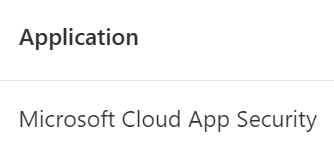
- The Application field makes it clear that the labels were applied in Cloud App Security – the old name for Defender for Cloud Apps.
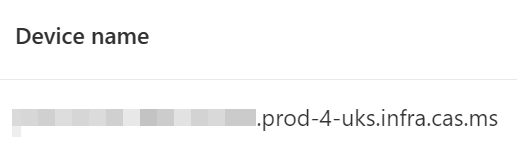
- The mystery of the location is solved by the information reported by the Activity explorer – the curious location is actually a node in the Defender for Cloud Apps service, where the file is presumably handled and thus labeled not in any specific service but on an “endpoint device”
- The DfCA’s governance action is treated as a manual label application, which would mean that client- or service-side auto-labeling would not override this label even if the file ended up matching these later on. I haven’t been able to currently verify this explicitly and it might be that Microsoft just reports it as manual in the logs here.

Using what we now know, we can filter the Activity Explorer to exclusively track the labeling actions of File policies, which can come in handy to supplement the policy match report provided by DfCA.

All in all, a pretty neat supplemental solution to help get sensitivity labels up and running. Just be very, very careful when choosing the baseline label to avoid unintentional consequences.
I hope you enjoyed this one!
 Seppala365.cloud
One response to “Apply a baseline sensitivity label to data-at-rest with Defender for Cloud Apps”
[…] Using the general method I described in this blog, we can leverage Defender for Cloud Apps to automatically apply sensitivity labels to any documents matching a document fingerprint with the desired confidence level. In short, set an MDA File Policy’s inspection method to look for fingerprints with a confidence level corresponding to high confidence, as discussed in the previous chapter. […]
LikeLike