



- What are dynamic tokens?
- Testing methodology
- Output examples and notes
- %%MatchedConditions%%
- %%ContentUrl%%
- %%AppliedActions%%
- %%BlockedMessageInfo%%
- %%ContentId%%
- %%TimestampForIncidentOccurrence%%
- %%MatchedConditionsAndValues%%
- %%Filename%%
- %%PolicyName%%
- %%PolicyRule%%
- %%Workload%%
- %%MatchedSITAndSurroundingcontext%%
- %%UserEmail%%
- %%SiteAdmin%%
For some time now, Microsoft Purview Data Loss Prevention rules have had the option to send customizable email notifications to a user when their activity triggers the rule. A common example of such a scenario would be sharing sensitive information like credit card numbers with an external recipient through Exchange Online email or in a file from OneDrive or SharePoint.
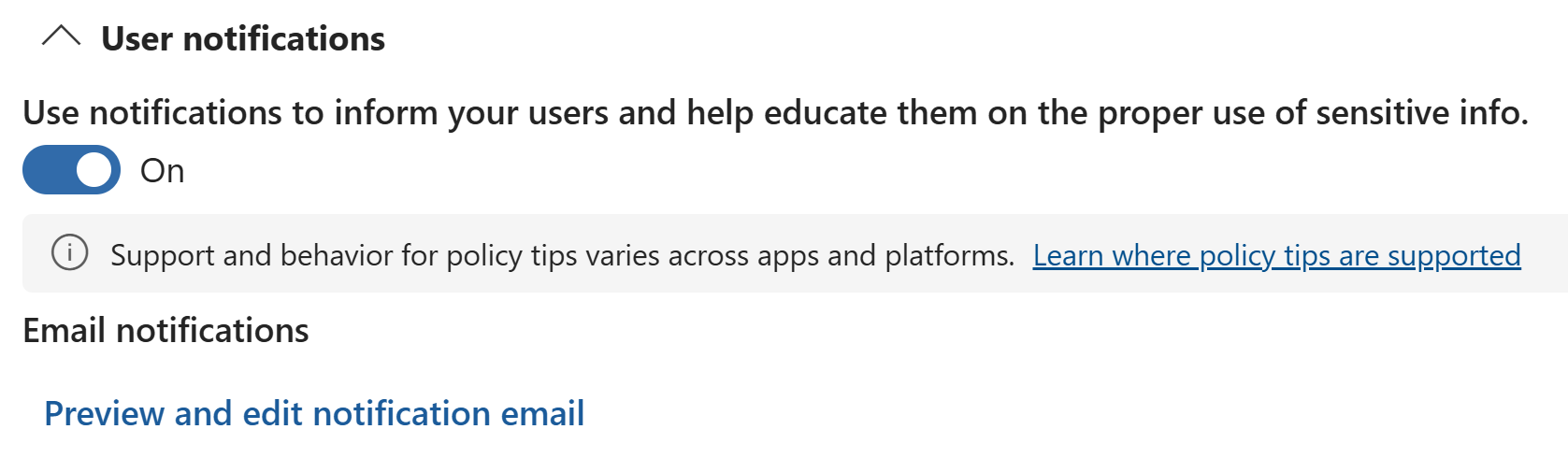
When customizing these email notifications, we only used to be able to add static plain text for the body and subject of the email – a clunky experience with limited utility.
The feature has evolved significantly over time and we’re now able to do much more; we can for example customize the sender’s display name and add richly formatted text to the body, allowing tailoring the email to fit an organization’s brand and direct the user to additional resources, among other things.
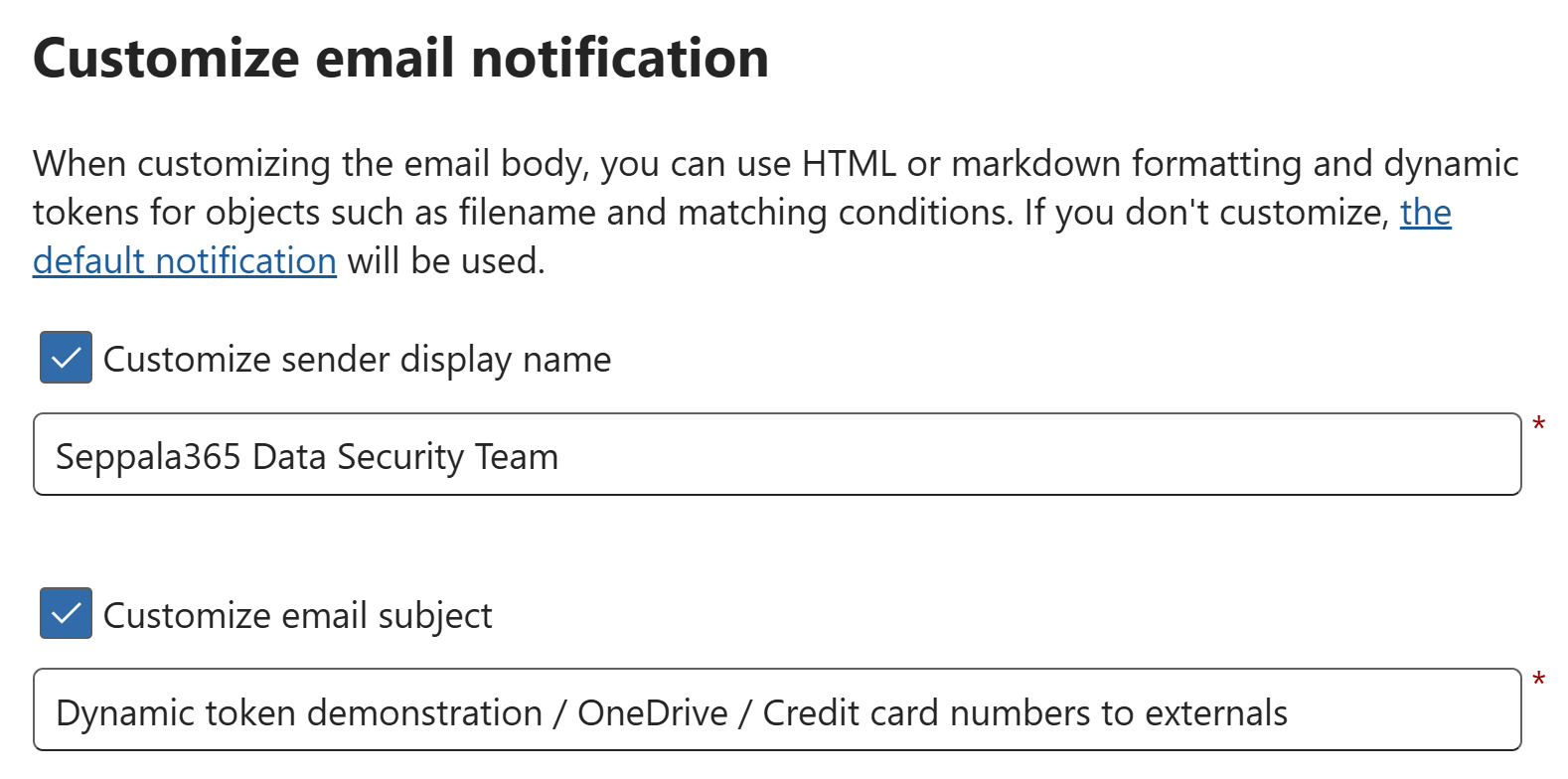
What are dynamic tokens?
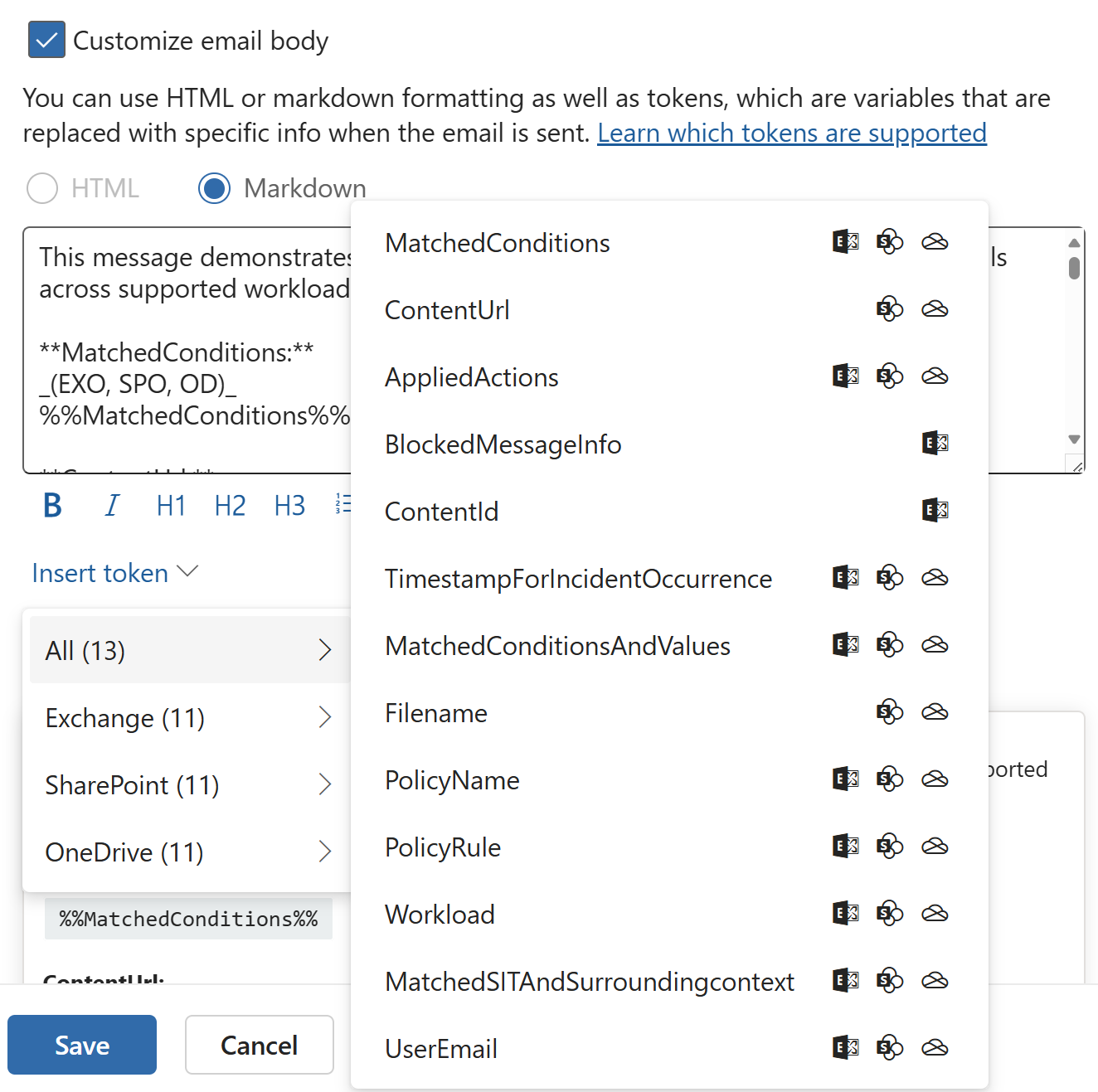
Importantly, we can also now utilize something called dynamic tokens that let us include content in the email that derives its value based on the user, file, time or other factors involved in triggering the DLP rule. This gives us flexibility when designing notifications and enabled making them more relevant and actionable for the recipient.
The tokens themselves are no secret and are well-documented – check out the relevant page in Microsoft Learn if you wish. As of 8/2024, they are supported in Exchange, SharePoint and OneDrive DLP rules – this might of course expand in the future.
The thing that Microsoft currently does not provide is accurate examples of the exact output of each of these tokens.
Testing methodology
Earlier this year, I was running some of the newer, still in-preview tokens through their paces in my lab environment when I noticed that some of them either behave differently compared to their official description or, in one case, can present a serious risk of data exposure. I also found some of them to be more practical than others, for various reasons. I recreated my test scenarios now to ensure the information in this article is fresh.
This time, I used a simple set of valid example credit card numbers from this source. The email notification body that I created while researching is available at the end of the article.
An illustrative example of how I structured the notification body and dynamic tokens is in the image below. The tokens are identified by %% marks around the token word.
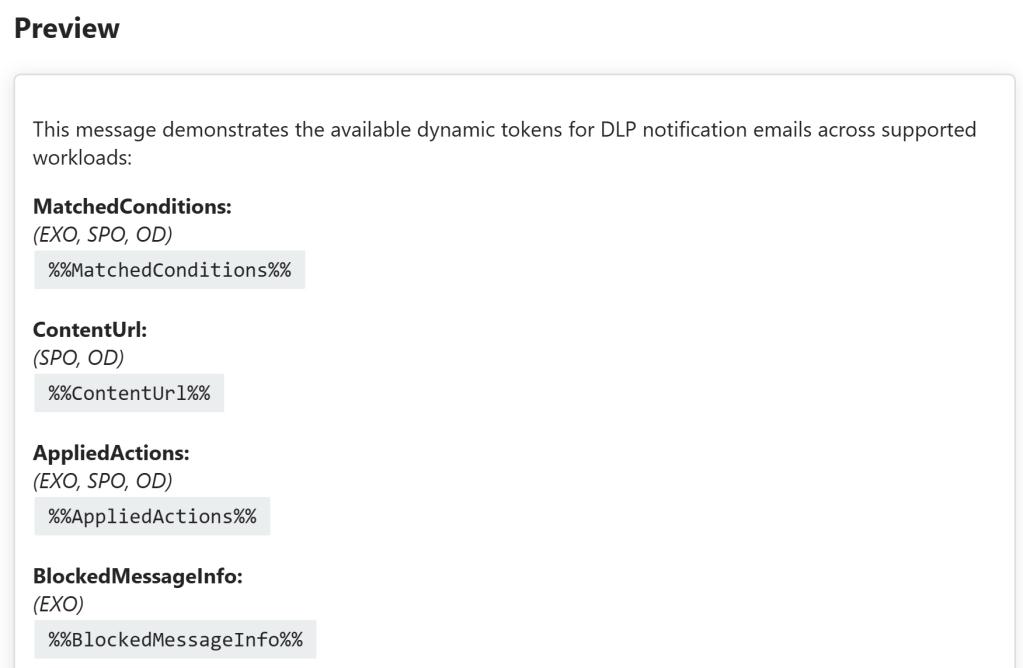
I ran tests for both Exchange Online and OneDrive, with the DLP rule conditions set as:
- Content contains 1+ credit card numbers
- Content is shared with people outside the organization
Output examples and notes
What I think we need is an easy-to-use reference guide showcasing what you can expect to get from each dynamic token, so let’s go over them one by one.
The information below is current as of August 2024. More tokens (and changes to existing ones) can and likely will roll out over time. As such, I also recommend referring to the official documentation I linked to earlier when working with email notifications.
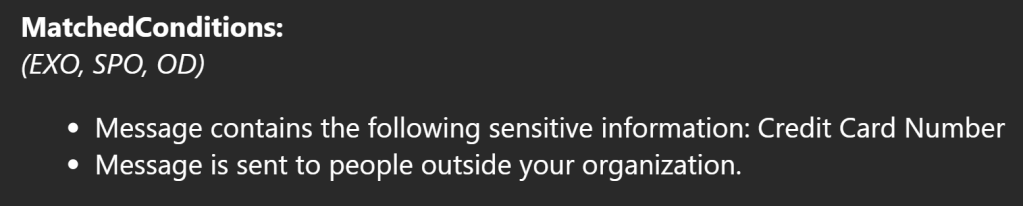
%%MatchedConditions%%
| Microsoft’s description | Supported workloads |
|---|---|
| The conditions that were matched by the content. Use this token to inform people of possible issues with the content. | Exchange ✅ SharePoint ✅ OneDrive ✅ |
✍️ Example output
💭 Notes
- The formatting of the information is clear enough. It’s more or less a condensed version of the “quick summary” of the DLP rule conditions in the rule editor.
- Still, I’d rather just describe the DLP rule conditions in natural language directly in the email body to have more freedom on how to express the rule conditions in a user-friendly manner.
%%ContentUrl%%
| Microsoft’s description | Supported workloads |
|---|---|
| The URL of the document on the SharePoint site or OneDrive site. | Exchange ❌ SharePoint ✅ OneDrive ✅ |
✍️ Example output
OneDrive & SharePoint:
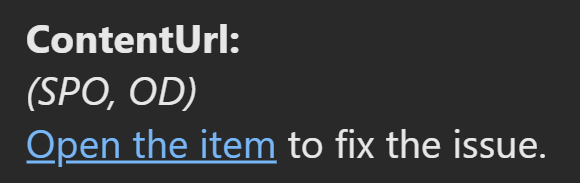
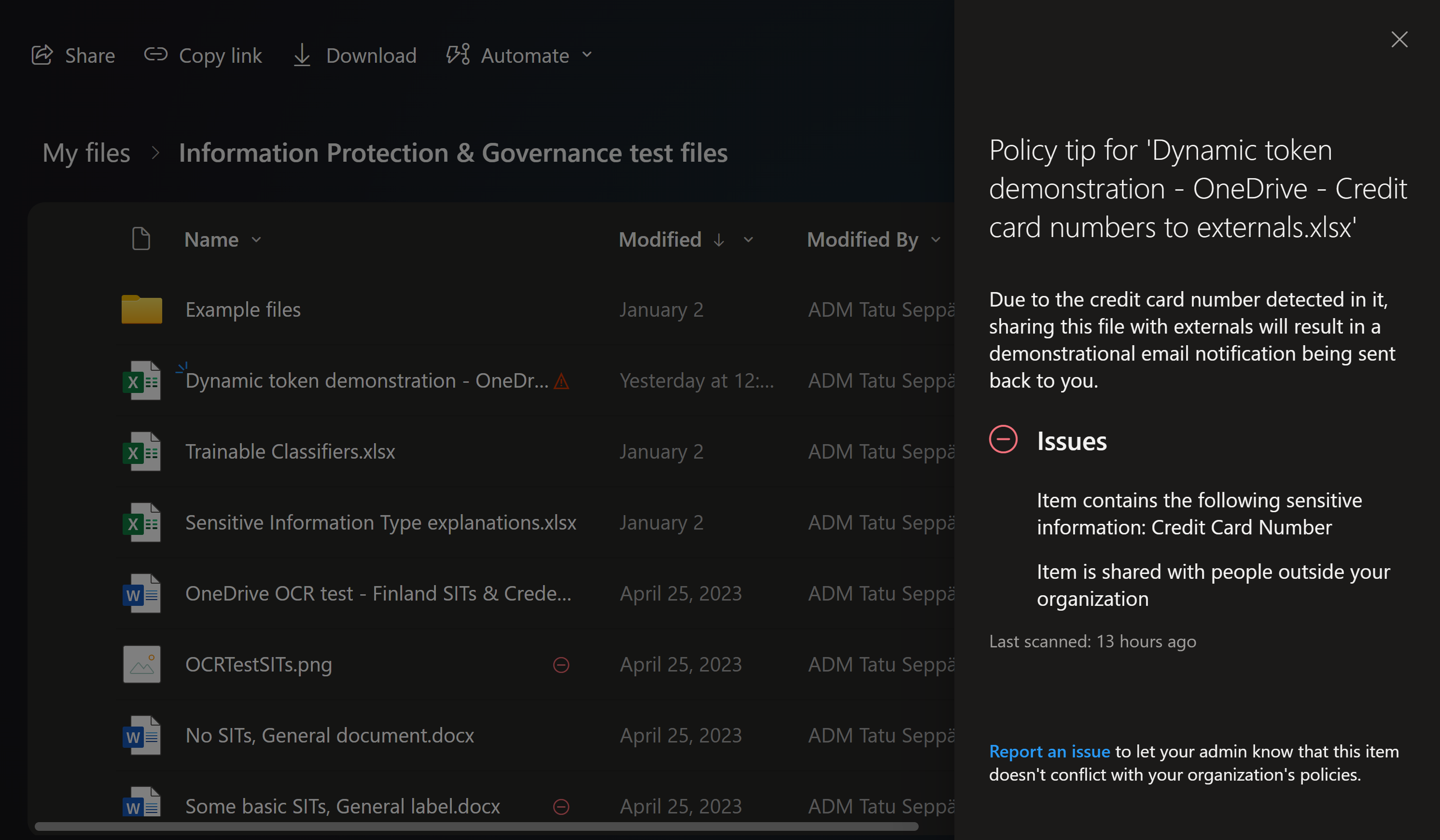
The link opens up the OneDrive or SharePoint location of the file in the browser and pulls up the policy tip pane for the document:
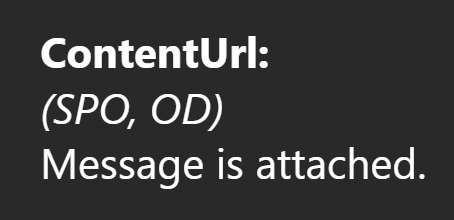
Exchange isn’t officially supported but the token still works.. sort of:
💭 Notes
- The formatting of the link sets off the phishing alarm bell in my head – it’s not optimal. Also, a DLP rule match doesn’t necessarily indicate that there’s an “issue” to fix so the wording could be better. I recommend looking at %%FileName%% instead as it has improved formatting and links directly to the file itself – it’s far easier to incorporate into various types of notification texts.
- If you do use this for Exchange in its current, unsupported state, note that the value of this will say “Message is attached” even if you go ahead and disable the original email from being attached to the DLP notification, which is the default setting. Impractical, even though it “works.”
%%AppliedActions%%
| Microsoft’s description | Supported workloads |
|---|---|
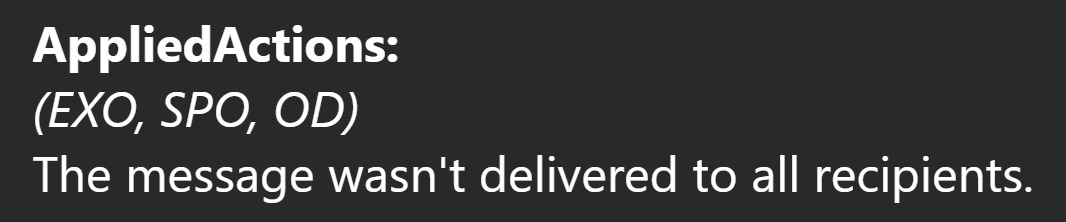
| The actions applied to the content. | Exchange ✅ SharePoint ✅ OneDrive ✅ |
✍️ Example output
For Exchange:
💭 Notes
- Only seems to contain a value when the policy blocks delivery or sharing. For rules simply showing policy tips and auditing the activity, the token was without a value.
- As long as there is no comprehensive list of conditions and exact messages this token prints out in various circumstances, I’d avoid this and type out the repercussions of the DLP rule as static text instead. Otherwise your DLP messaging can change unexpectedly if Microsoft changes their values and logic for this under the hood.
%%BlockedMessageInfo%%
| Microsoft’s description | Supported workloads |
|---|---|
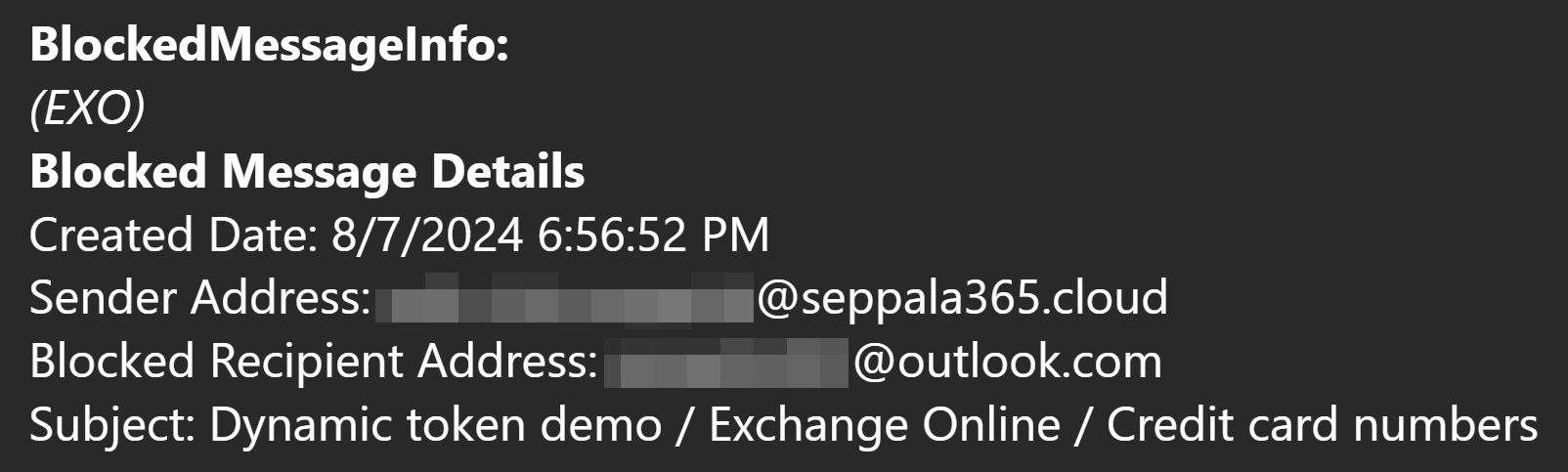
| The details of the message that was blocked. Use this token to inform people of the details of the message that was blocked. | Exchange ✅ SharePoint ❌ OneDrive ❌ |
✍️ Example output
💭 Notes
- It’s well-formatted and doesn’t contain any unnecessary information. Kudos! 👍
- This honestly is one of the better tokens. If you have DLP rule conditionally blocking delivery of messages in Exchange Online, I’d include this info in the DLP notification to help provide context to the user about the exact message.
- One thing to consider is that a DLP rule might only block external recipients from receiving an email while still delivering it to internal ones. You should make sure this is clarified in the email notification.
- That said, do also remember that DLP email notifications aren’t mandatory for emails. Many organizations I work with consider DLP notification emails as a reaction to emails unnecessarily spammy and irritating. Only send them if it provides a tangible benefit and you scan scope the DLP rule tightly enough for this to make sense.
%%ContentId%%
| Microsoft’s description | Supported workloads |
|---|---|
| The unique identifier of the message. | Exchange ✅ SharePoint ❌ OneDrive ❌ |
✍️ Example output

💭 Notes
- ContentID is almost exclusively useful for technical folks who would want to easily pinpoint and inspect details related to the exact email involved in the DLP match using tools like Threat Explorer in the Defender portal.
- I would avoid including this in any DLP rule notifications that are primarily sent to regular end-users. For them, it’s cryptic and unhelpful jargon.
%%TimestampForIncidentOccurrence%%
| Microsoft’s description | Supported workloads |
|---|---|
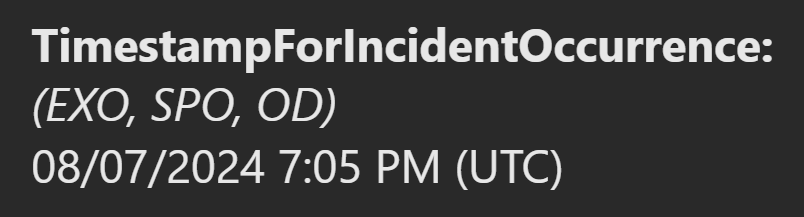
| Timestamp in UTC of when the DLP policy conditions were matched. | Exchange ✅ SharePoint ✅ OneDrive ✅ |
✍️ Example output
💭 Notes
- Being able to add the exact time for the DLP match to the notification can be situationally useful. This info can help mitigate the effect of a possible notification email delivery delay and helps the end-user understand exactly when the rule match occurred.
- Note that for Exchange Online, the timestamp is also included in the %%BlockedMessageInfo%% token – which naturally is only applicable if you’re blocking some or all recipients.
%%MatchedConditionsAndValues%%
| Microsoft’s description | Supported workloads |
|---|---|
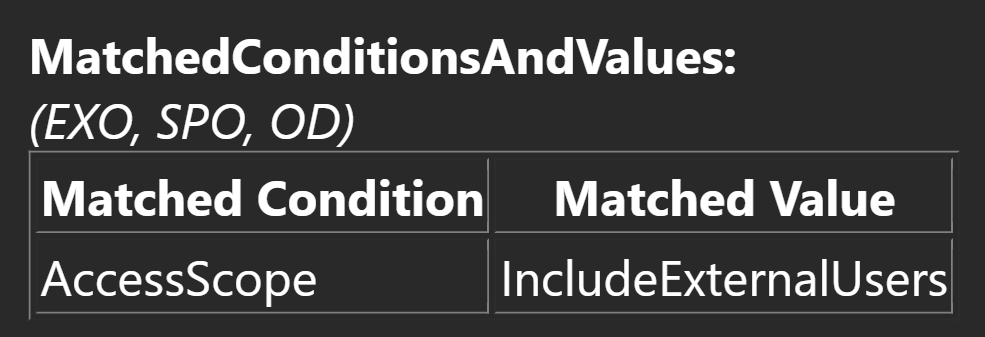
| The matched DLP condition and values. This token doesn’t cover the content contains sensitive info condition. For matched SITs and redacted values, see %%MatchedSITAndSurroundingcontext%% | Exchange ✅ SharePoint ✅ OneDrive ✅ |
✍️ Example output
For all workloads, the output was the same:
💭 Notes
- The formatting for this is more technical and confusing than the token %%MatchedConditions%% we covered earlier in the article. I would stick to that one instead, especially for DLP notifications going out to end-users.
- ..to be honest, I’d use %%MatchedConditions%% even for notifications going out to technical users. It presents the same information in a superior format in my opinion.
%%Filename%%
| Microsoft’s description | Supported workloads |
|---|---|
| For SharePoint and OneDrive matches, this token shows the document name. For Exchange, it shows the email subject or attachment name. | Exchange ✅ SharePoint ✅ OneDrive ✅ |
✍️ Example output
For SharePoint & OneDrive, the filename comes with a hyperlink that points directly to the file itself, opening it when clicked.

For Exchange Online, the plaintext subject field of the email matching the DLP rule is included, as documented.

💭 Notes
- This is possibly the most generally useful dynamic token for OneDrive and SharePoint. It’s like a less-suspiciously formatted and more practical cousin of %%ContentURL%%.
- This is the token I find myself using the most out of all of them. It’s nice for providing a clean, direct and well-formatted link for end-users to the file triggering the policy.
- For Exchange, it’s more of a small bonus since it allows you to include the subject of the DLP-triggering email in a sentence like “Your email with the subject %%Filename%% was not delivered to external recipients due to <reasons>”
- Originally EXO wasn’t a supported workload so it isn’t mentioned in the email template I used for testing. It’s added in the example at the end of the article, though.
%%PolicyName%%
| Microsoft’s description | Supported workloads |
|---|---|
| The matched DLP policy name. | Exchange ✅ SharePoint ✅ OneDrive ✅ |
✍️ Example output
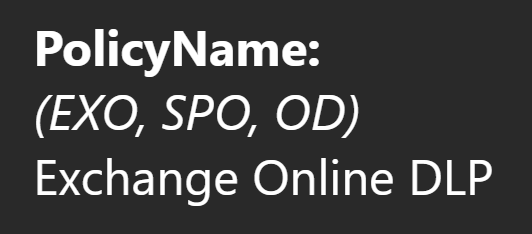
💭 Notes
- The name of the DLP policy the triggering DLP rule is contained in. Nothing special.
- Typically not usually practical or useful information for end-users. Might occasionally help with debugging.
%%PolicyRule%%
| Microsoft’s description | Supported workloads |
|---|---|
| The matched DLP rule name. | Exchange ✅ SharePoint ✅ OneDrive ✅ |
✍️ Example output
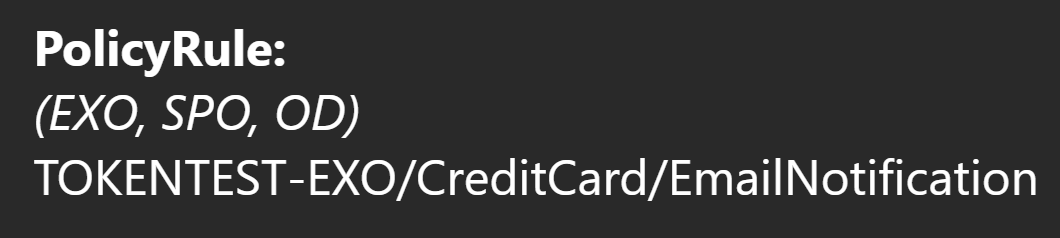
💭 Notes:
- The name of the DLP rule – that’s it.
- Just like the name of the DLP policy, not very relevant info for end-users. Admins and other technical folks might benefit more from this detail.
%%Workload%%
| Microsoft’s description | Supported workloads |
|---|---|
| The workload name where the match occurred. | Exchange ✅ SharePoint ✅ OneDrive ✅ |
✍️ Example output
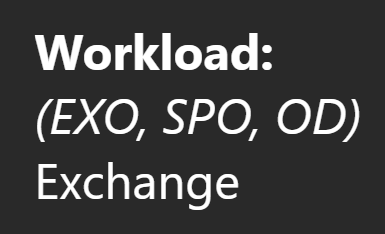
💭 Notes
- Handy if you build DLP policies scoped to multiple workloads and you want to mention the service to provide context in your DLP notification.
- I stand by one DLP policy per workload still being best practice for most deployments, so for me this won’t be of practical use for now. Still, it has a clear use-case.
%%MatchedSITAndSurroundingcontext%%
⚠️ I consider this dynamic token’s output highly problematic in its current state. See the notes for details.
| Microsoft’s description | Supported workloads |
|---|---|
| The matched SITs and the redacted values. | Exchange ✅ SharePoint ✅ OneDrive ✅ |
✍️ Example output
The output has the same formatting regardless of workload.
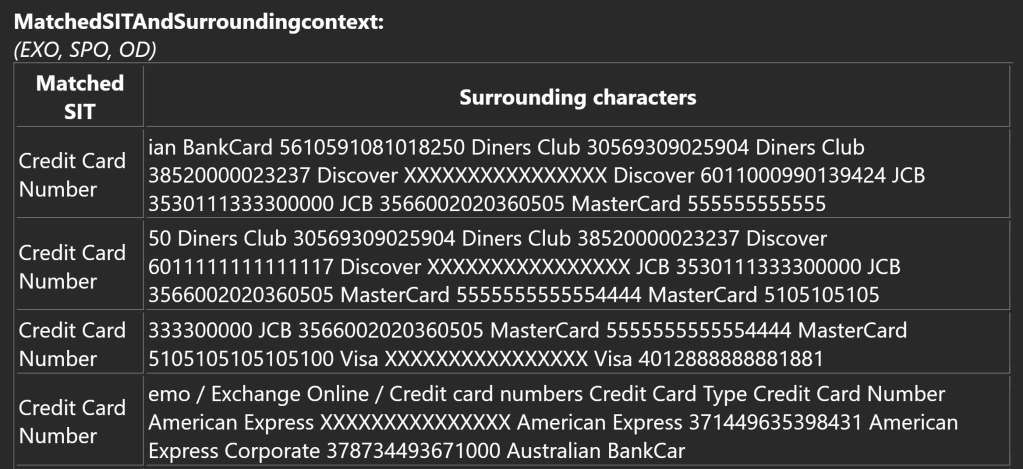
💭 Notes
- This token is very problematic in its current state.
- It prints out a table with one row for each SIT match found in the content matching a DLP rule.
- Initially, it does a good job by masking the string that caused the DLP rule match and provides a certain amount of contextual text from around the match.
- The problem is, it doesn’t check whether the surrounding context has other matches.
- In my testing, I used an Excel sheet with credit card numbers on consecutive rows – not a very exotic scenario. As you can see in the image above, every other credit card number around each match is reproduced in clear text, potentially exposing the information to individuals that wouldn’t have access to it otherwise.
- As an added concern, this functionality unnecessarily duplicates risky information in a location where it is still notoriously difficult to discover and govern – the Exchange Online email inbox.
- I think the logic for this dynamic token needs a rehaul before I could recommend using it in any production rule. Every matching string within the surrounding context needs to be also be masked, along with the triggering string. The intent is correct but the execution is not yet there.
%%UserEmail%%
| Microsoft’s description | Supported workloads |
|---|---|
| The email address of the end user associated with the matched content. | Exchange ✅ SharePoint ✅ OneDrive ✅ |
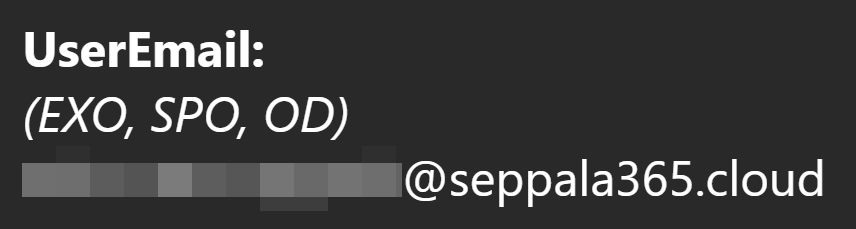
✍️ Example output
💭 Notes
- This one is pretty clear-cut. It’s the UPN / email address of the user account triggering the DLP rule.
- For some reason Exchange Online rules print out the UPN in lowercase while OneDrive & SharePoint Online have the value in all uppercase. Peculiar.. but irrelevant.
%%SiteAdmin%%
| Microsoft’s description | Supported workloads |
|---|---|
| For SharePoint sites, this token shows the email address of the site administrator. | Exchange ❌ SharePoint ✅ OneDrive ❌ |
✍️ Example output – yeah, it’s empty. More on that in the notes.
💭 Notes:
- I had serious trouble getting this token to populate any information at all, whether from a file in a Teams team or in a standalone SharePoint site.
- After trying several variations of SharePoint site and external sharing recipient, I called it a day and gave up. It’s likely this one isn’t functioning correctly due to it still being in preview as of 8/2024. The intent is still clear enough from the description and in most DLP use cases the token isn’t critical.
- It’s also worth noting that this token is actually only found in documentation but isn’t available in the Purview DLP rule editor’s UI, as seen in the image here. An upcoming capability documented in advance, I suppose.
As a short recap, some of the dynamic tokens work exactly as advertised. Others, not so much. Many (like %%FileName%%) are excellently useful in everyday scenarios – while others are niche to say the least.
One of the tokens (%%MatchedSITAndSurroundingcontext%%) can inadvertently expose sensitive data in its current state.
Try it yourself!
Here’s the email notification body with markdown formatting I formulated for this test. It contains all of the currently-documented dynamic tokens as a nice, clean list.
Feel free to use it as a template for testing and validating the output of your DLP email notifications.
This message demonstrates the available dynamic tokens for DLP notification emails across supported workloads:
MatchedConditions:
(EXO, SPO, OD)
%%MatchedConditions%%
ContentUrl:
(SPO, OD)
%%ContentUrl%%
AppliedActions:
(EXO, SPO, OD)
%%AppliedActions%%
BlockedMessageInfo:
(EXO)
%%BlockedMessageInfo%%

ContentId:
(EXO)
%%ContentId%%

TimestampForIncidentOccurrence:
(EXO, SPO, OD)
%%TimestampForIncidentOccurrence%%

MatchedConditionsAndValues:
(EXO, SPO, OD)
%%MatchedConditionsAndValues%%

Filename:
(EXO, SPO, OD)
%%Filename%%

PolicyName:
(EXO, SPO, OD)
%%PolicyName%%

PolicyRule:
(EXO, SPO, OD)
%%PolicyRule%%

Workload:
(EXO, SPO, OD)
%%Workload%%

MatchedSITAndSurroundingcontext:
(EXO, SPO, OD)
%%MatchedSITAndSurroundingcontext%%

UserEmail:
(EXO, SPO, OD)
%%UserEmail%%

SiteAdmin:
(SPO)
%%SiteAdmin%%
That’s all for this one. Stay safe! ✌️

