


- Configuration
- Testing in Microsoft 365 web apps
- Testing in Microsoft 365 Apps for Enterprise
- A word on unsupported scenarios
- Initial impressions
Updates:
- September 16th 2024 – Added information and a screenshot of the new Device.DateTime token.
In the first half of July 2024, Microsoft introduced dynamic watermarks in their Microsoft 365 Insider blog – a capability that lets you project a user’s User Principal Name onto a document when the content is opened in supported Office apps.
It’s a neat attempt to start fixing a persistent problem as old as time – data exfiltration through screencaps of sensitive content. There’s an old cliché in the security space that if someone really wants to exfiltrate information, they will. It’s generally true – but it seems like we can once again make leaking sensitive information without getting caught a bit more difficult.
The feature is now in preview and I saw it pop up in one of my lab tenants today, so I took a quick look. Here’s the lowdown.
Configuration
Think of dynamic watermarks as an addon to sensitivity labels with admin-assigned encryption already-configured. That is because those are the only types of labels you can initially use the feature with.
When I tested this on August 13th 2024, dynamic watermarks could be turned on for a sensitivity label via a simple checkbox next to the encryption permission definitions in the label configuration UI. Check the box and you’re done – simple enough.
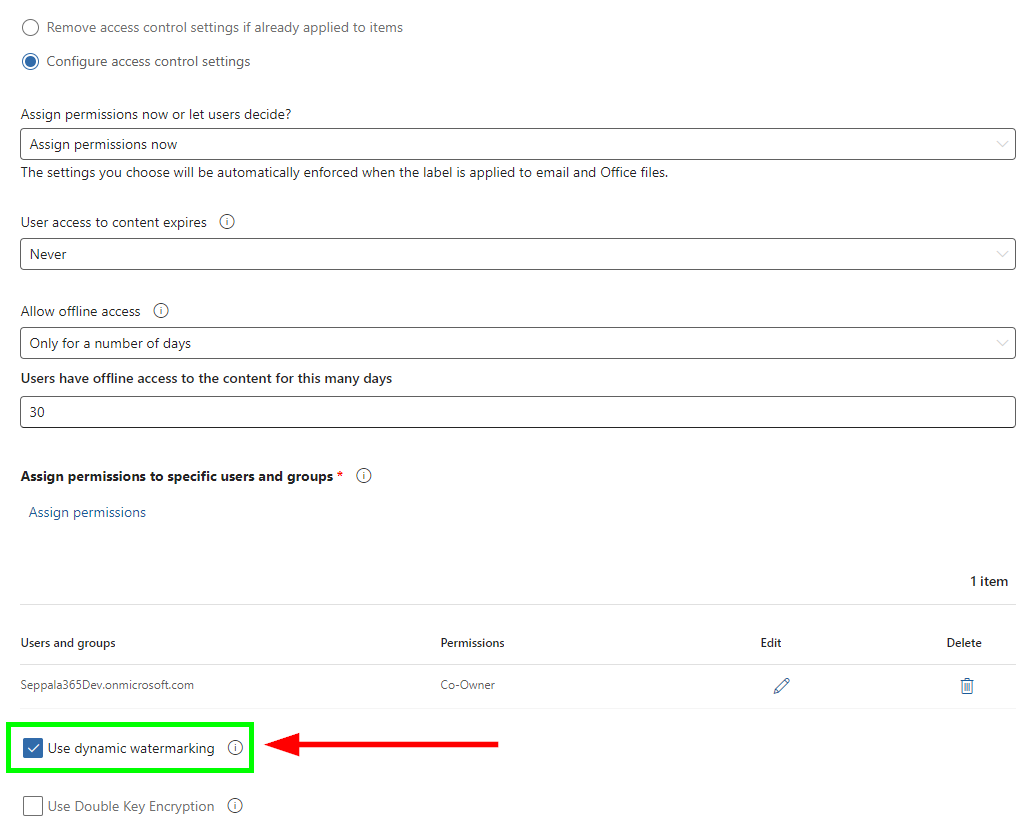
For labels with user-defined permissions or labels that remove existing access control settings, the option isn’t available.

To make sure it isn’t just a UI oversight, I tried turning it on for a UDP label with PowerShell. Nope.

By default, the watermark message displays the User Principal Name (UPN) of the user interacting with the document. This can actually be altered already to a limited extend by using Security & Compliance PowerShell cmdlets.
You can check an existing sensitivity label’s dynamic watermarking settings with these commands:
# Set sensitivity label name in a variable
# Note: This is *not* the label's display name, but rather the immutable name attribute that can only be set once when the label is created. Use Get-Label to see it if you're unsure.
$labelName = "Confidential-InternalOnly"

# Fetch the dynamic watermark text and feature status for the specified sensitivity label
$dynamicWatermarkSettings = ((((get-label $labelName).labelactions) | ConvertFrom-Json) | Where-Object {$_.Type -eq "applydynamicwatermarking"}).settings

# Print out the settings
$dynamicWatermarkSettings
The default value for the DynamicWatermarkDisplay attribute is “`${Consumer.PrincipalName}” – and indeed, when I did some testing, I noticed that as the error below mentions, it’s actually required for now so you can’t remove it from the watermark – likely a preview phase limitation.

So far, Consumer.PrincipalName is the only documented valid value but the existence of the Consumer.Something formatting suggests future additions of other types of contextual information like display names, workstation names, IP addresses and possible timestamps(?). I’m just speculating here.
🆕 Update – September 16th 2024:
A new optional dynamic token was introduced for displaying the date & time on the device – `${Device.DateTime}. You can easily incorporate it to your dynamic watermark using the following example command:Set-Label <guid> -DynamicWatermarkDisplay "`${Consumer.PrincipalName} (`${Device.DateTime})"
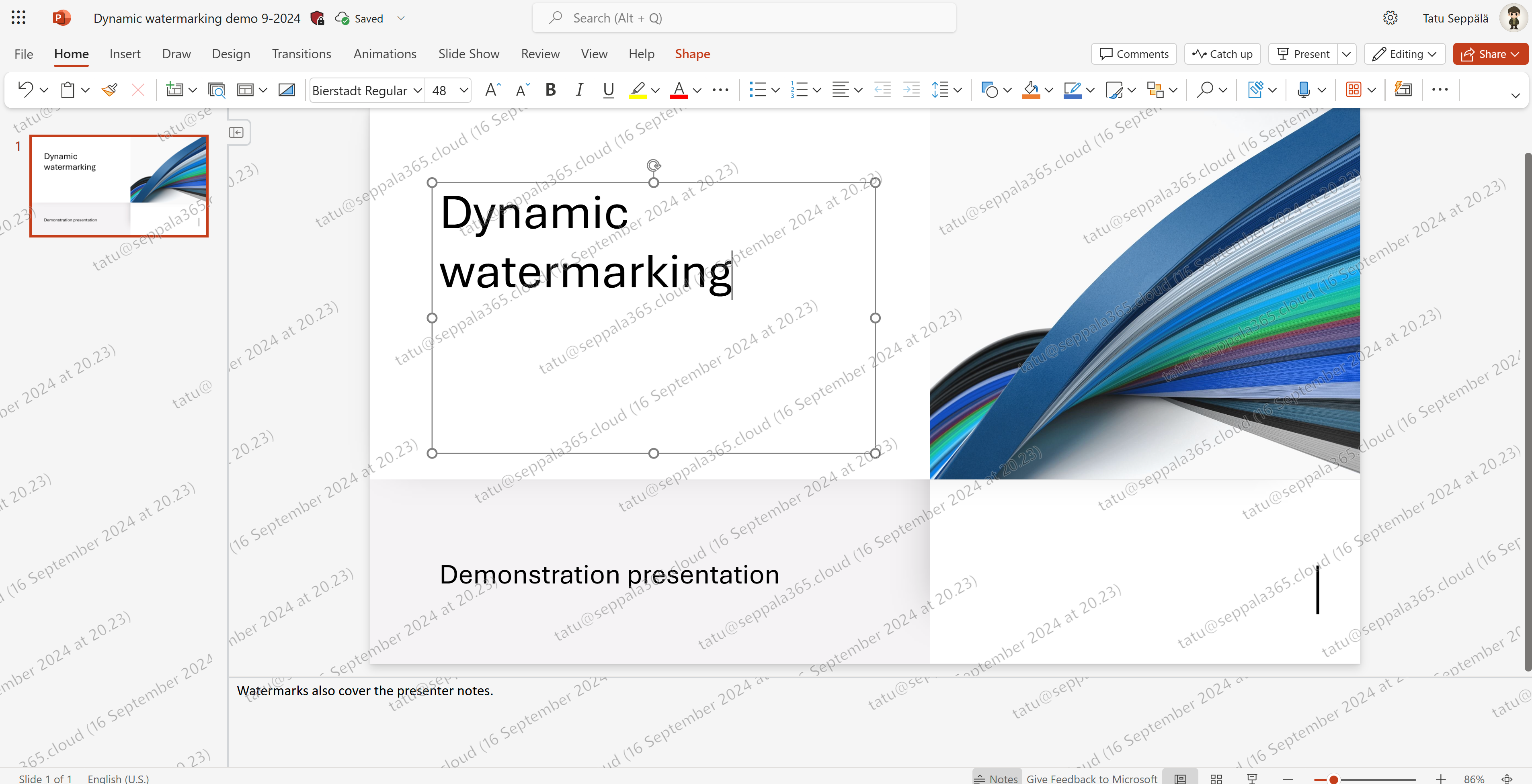
What you can already also do is add static text to the dynamic watermark. This is showcased in the example below, in which I added text denoting the sensitivity label of the document – Confidential.

To add static text to your dynamic watermark, you just include it inside the quotation marks (“”) in the command:
Set-Label <labelname> -DynamicWatermarkDisplay "Your custom text here `${Consumer.PrincipalName} or here."
Expediting a dynamic watermark rollout with forced use license expiration
Do note that since dynamic watermarking is tied to the sensitivity label and its encryption, it is subject to the same quirks around use license expiration I detailed at length in my earlier article Demystifying Microsoft Purview sensitivity label encryption – part 1. I suggest reading at least the first chapter if you don’t already know how use licenses work. I try to make it easy to digest.
From a purely technical standpoint, there is way to ensure that every user accessing a sensitivity labeled document gets a newly added dynamic watermark applied without having to wait for their use license (which can even take weeks or months, depending on how the label is set up) to expire.
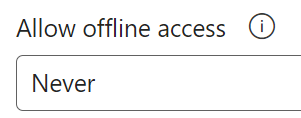
You can “force” use license expiration by temporarily configuring the sensitivity label’s Allow offline access value to Never, which practically forces every user’s client app to re-check the label’s permissions and settings every time a document with the label is opened.
⚠️
Please consider that disallowing all offline access to encrypted documents to ensure quick propagation of dynamic watermarks might cause issues with some processes. Let’s not break production, folks!
Trick: You can apply dynamic watermarking without limiting the document’s audience
In some situations, you might want to only use a sensitivity label to ensure that anyone in the world that accesses a document has the dynamic watermark displayed without imposing any limits on who can access the contents.
To accomplish this, you can create a sensitivity label with the Authenticated users permission scope and grant up to Co-Author permissions to it, while also granting Co-owner permissions to all internal users to allow changing the label later on. To understand the full effects of these permission levels, read more here.
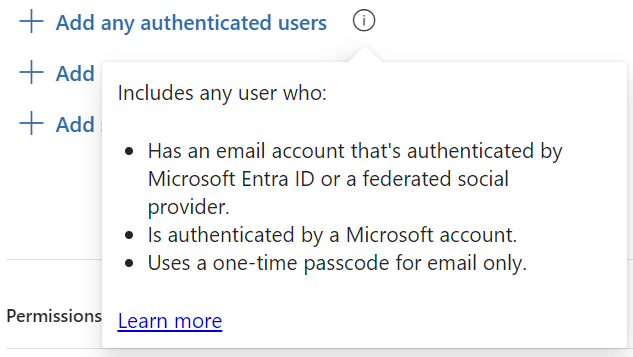
Using this kind of open-scope label has the side effect of logging every time anyone accesses the document “in the wild” into the Unified Audit Log since the user has to authenticate against Entra ID while doing so. Do review the limitations of the authenticated users scope though.
Testing in Microsoft 365 web apps
To understand the impact of the dynamic watermarks on document legibility and to verify that they worked consistently, I performed some testing as always, running through sensitivity labeled demo documents both in standalone M365 web apps and the Word, Excel and PowerPoint apps in Teams.
The screenshots below are from the standalone web apps – the experience was the same in Teams.
Word Online
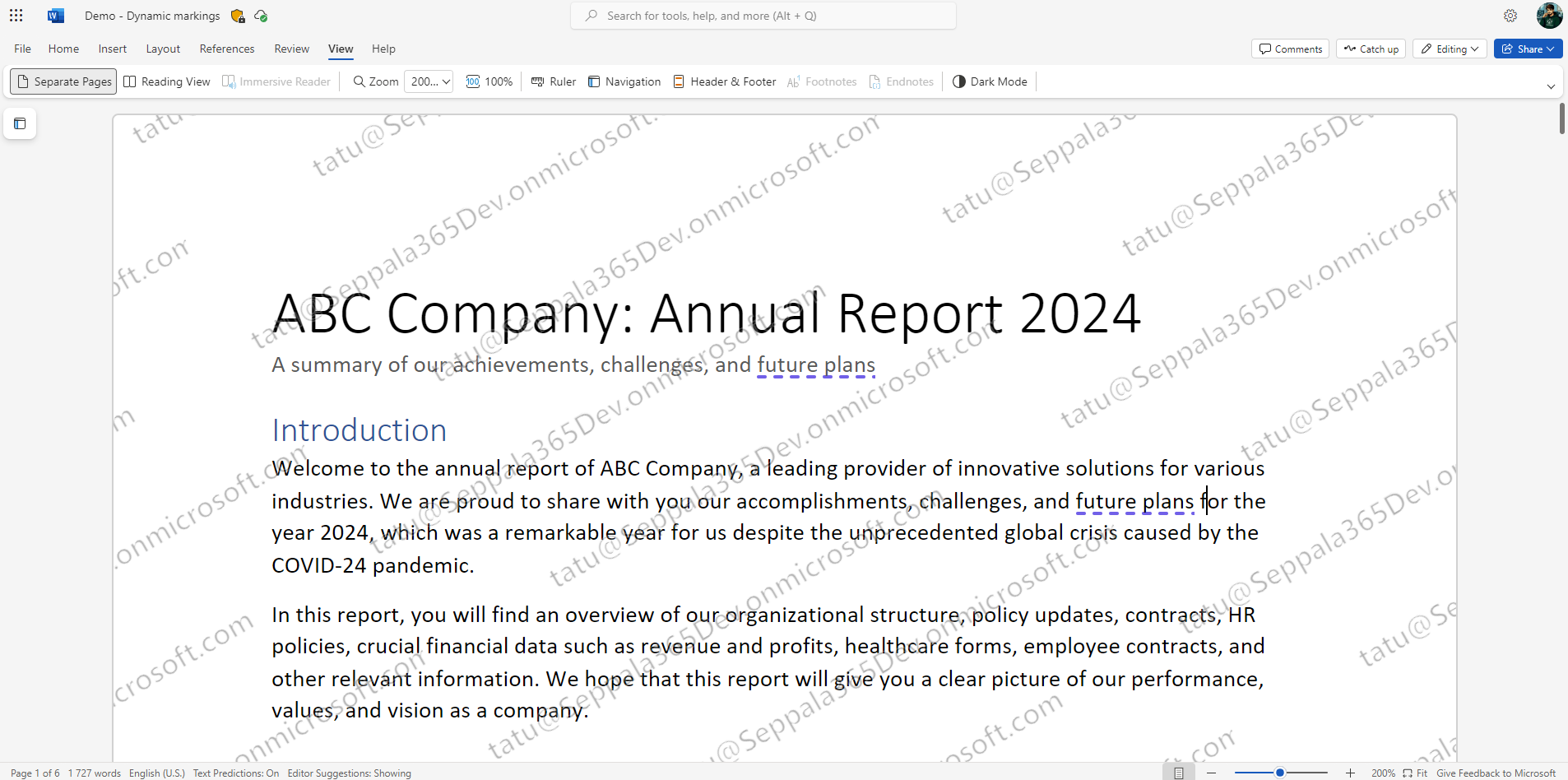
Let’s look at Word first, with the default dynamic watermark. Here’s Word Online with the light theme.
..and with the dark theme.

Both seem OK, although the light theme came off as slightly easier to read somehow. For context, I’m a sword dark theme guy.
Excel Online
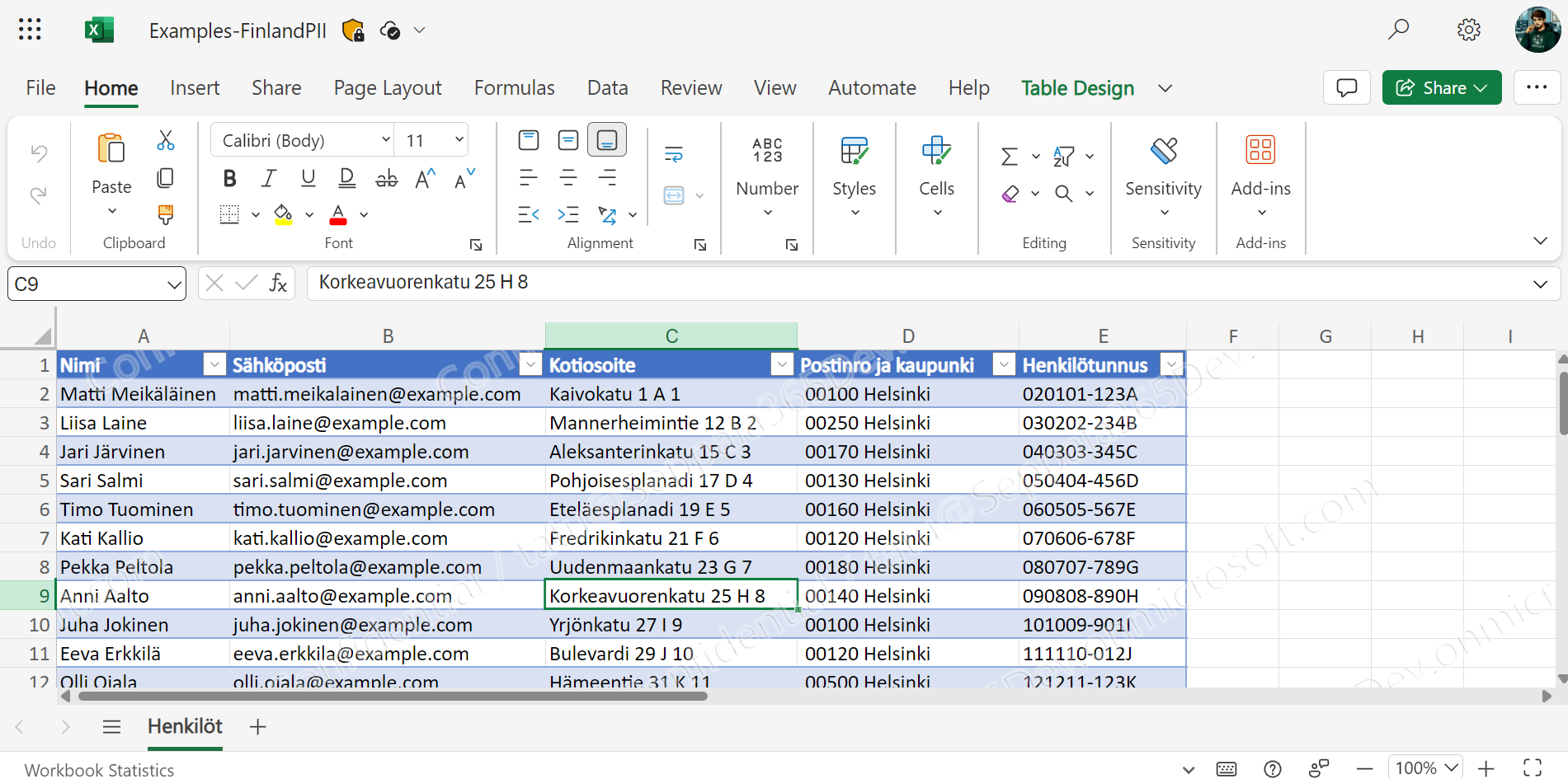
Maybe it’s just the color of the watermark text blending with the colors of the bluish default table style, but the watermark in Excel Online was considerably subtler compared to all the other scenarios I tested.
The watermark should still show up under close scrutiny of any screenshots but honestly it could be clearer here IMO. Excel’s desktop app’s implementation differed from Web and I cover that one later in the article.
PowerPoint Online
PowerPoint’s watermarking implementation is surprisingly well done since it not only overlays watermarks on the active slide but also on the speaker notes and the previews of other slides in the left-hand pane. Impressive!

Here we also get our first glimpse at the modified watermark I configured. It looks like in all three Online apps, the watermarks worked just fine.
Outlook isn’t supported – for now. So many screencaps of internal memos and email conversations get leaked online regularly that extending this capability in that direction would be a very natural fit.
Testing in Microsoft 365 Apps for Enterprise
After going through the initial round of testing in the web apps, we’ll do the apps in Windows next to see if the experience remains consistent.
As a bonus, the custom dynamic watermark text I configured had a few minutes to propagate so we can already see it in all of the screenshots below.
Word in Windows
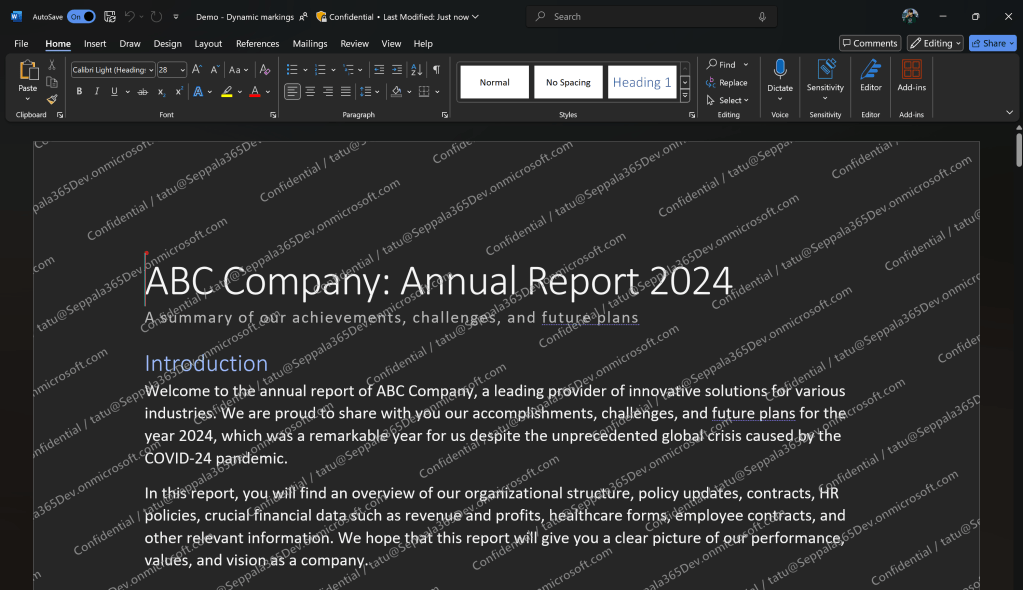
First, we’ll take a look at the light theme. Pretty similar to Word Online and works well. No complaints.

Here’s the dark theme:
Excel in Windows
Excel in Windows displayed dynamic watermark in a markedly different way compared to its web app counterpart, overlaying the text on top of the sheet – this brings in line with the other Windows apps.

PowerPoint in Windows
PowerPoint executes the feature just like in the web app, covering not just the active slide but the preview slides and speaker notes as well. Kudos to the product group for this one.👍

A word on unsupported scenarios
In the preview phase, not all apps and platforms support dynamic watermarks just yet. This is exceptionally important to understand here because unsupported apps won’t just skip showing the watermark – they won’t open the document itself.
To avoid replicating documentation, please check the latest supported scenarios in the Microsoft Learn article Sensitivity label capabilities in Word, Excel, and PowerPoint.
As a snapshot, on September 9th, 2024 the Microsoft 365 Apps versions supporting Dynamic Watermarks in Public Preview were:
Web: ✅ Supported
Windows: ✅ Current Channel (Preview)
MacOS: ✅ 16.87 or newer
iOS: ✅ 2.88+
Android: In preview through Android’s M365 Insider Beta channel
Initial impressions
Truthfully, I got questions from customers as early as 2022 about the possibility of implementing something exactly like dynamic watermarks, so I’m personally satisfied that they are becoming a thing now. The implementation is mostly what you’d hope for, with presumed future additions to customization options rounding out what’s currently still lacking in that department.
Since encryption with admin-assigned permissions is a requirement, I would look at existing such labels in your taxonomy as early candidates for piloting this – especially ones at the high-priority end of your taxonomy, with labels similar to Secret being ones to look at first once this gets to general availability.
An excellent addition, this. I like it, even in its limited preview state.
 Seppala365.cloud