


- An introduction to the series
- Why KQL?
- Preparations & pre-requisites
- Pain point: Data exfiltration through uploads to cloud domains
- Query buildup
- Design your sensitive service domain groups
- The IdentityInfo table
- Adding identity enrichment to Purview audit log queries
- Practical example: Uploads to risky actively used cloud services by job title
An introduction to the series
In my experience, having a firm grasp of Kusto Query Language and an understanding of audit logs are essential for designing fit-for-purpose Microsoft Purview data security solutions. KQL is the query language used to interact with log data in tools like Advanced Hunting and Log Analytics.
There is a vast wealth of resources for utilizing KQL for threat hunting and incident response already available online. However, practical examples of applying KQL queries to Microsoft Purview solution architecture and fine-tuning are still scarce.
In each installment of the Purview KQL Ninja series, I will unpack one distinct scenario lifted directly from my daily work as a security solution architect – from context, to queries, to application.
Why KQL?
Interacting with Purview logs using KQL solves a few of the inherent challenges of current tooling native to Purview like Activity Explorer and Audit Search:
- Scale: KQL-ready services work fairly fast and effortlessly with significant volumes of events.
- Granularity: We often need to direct our queries very specifically and sometimes with complex filtering that native Purview tools don’t support.
- Extensibility: In some cases, we’ll want to combine other log sources with Purview logs during the query itself – an example would be the IdentityInfo table.
Preparations & pre-requisites
As a prerequisite for looking at the scenario discussed in this article and other endpoint-specific events, you’ll need to ensure your target Windows 10/11 and macOS devices are onboarded to Microsoft Purview. This happens automatically through Defender for Endpoint onboarding.
If Chrome and/or Firefox are allowed browsers from a technical standpoint – that is, their use is not restricted with technical means – you’ll want to distribute the Microsoft Purview extension for both of them to be able to log file uploads and paste actions from them. Otherwise, your logs will only be based on exfiltration activities in Edge which supports logging this scenario natively, painting an incomplete picture.
Make sure you are already ingesting your Microsoft 365 tenant’s Unified Audit Log (UAL) into Defender for Cloud Apps by checking the Microsoft 365 activities box in the Microsoft 365 app connector settings. Doing so unlocks access to UAL events with Advanced Hunting. It’s as powerful as Log Analytics but allows looking back only 30d into the past (or longer, if you’ve connected your Sentinel to Defender XDR) – enough for most cases, but not all.
Additionally, I recommend further ingesting all Defender for Cloud Apps events to the Log Analytics workspace of one or more of your Microsoft Sentinel deployments. Through Log Analytics, we can look at events over far longer periods of time, determined by the interactive retention period configured for the workspace: 3mo, 6mo, 12mo or more. This unlocks long-term storytelling and trend detection abilities crucial in some design cases.
Pain point: Data exfiltration through uploads to cloud domains
I’ve seen a rising awareness of the risks of having no handle on business data leaving organizations through various potentially unsanctioned cloud services – especially through those aimed at consumers, with exfiltration through Generative AI services as a significant trend.
Long-term readers of this blog might remember me detailing how to implement technical controls through Endpoint DLP to mitigate just this risk back in April 2023. The guidance there is still entirely valid and I won’t repeat it here.
Instead, we’ll focus on proactively and effectively identifying the domains information is already being uploaded to based on logs generated by Microsoft Purview. As an architect, you would gather this information before starting any Endpoint DLP implementation, allowing you to build accurate sensitive service domain groups for authorized and unauthorized domains from the get-go.
Query buildup
Our mission is to create a report of all unique cloud domains your Purview-onboarded devices have uploaded files to over the last 30d.
Let’s start building the query step-by-step and learn to understand the logs as we go. I’ll use Sentinel’s Log Analytics but you can run the queries in Advanced Hunting as well – just replace the TimeGenerated parameter of Log Analytics with Timestamp used by Advanced Hunting instead. Apart from this, the KQL syntax should mostly be 1:1 cross-compatible.
To start us off, let’s take a look at the raw data for the last 24h. We’ll gather all of the FileUploadedToCloud events for 1d.
CloudAppEvents
| where TimeGenerated >= ago(1d)
| where ActionType has "FileUploadedToCloud"
This’ll give us the full unabridged event data so we can have a look at the schema. When getting to grips with a new event type, this is usually how I start.

Peeking into RawEventData
Most of the “good stuff” in Unified Audit Log events ingested into CloudAppEvents table is found under the RawEventData attribute.
Here’s a sanitized example of the real fields contained in that attribute for a FileUploadedToCloud event, just so you can see the depth of information we’re working with. I added a star ⭐ to some of the fields we’re likely to care about the most when designing or refining Endpoint DLP solutions.
- ⭐ Application: msedge.exe
- ClientIP: 88.123.234.123
- CreationTime: 2024-12-16T14:26:59.0000000Z
- DestinationLocationType: 4
- DeviceName: contoso-device01
- DlpAuditEventMetadata: {“DlpPolicyMatchId”:”3a9b7d5a-2f8a-4e95-6d43-1b5b4d726522″,”EvaluationTime”:”2024-12-14T09:35:08.1570263Z”}
- EnforcementMode: 1
- EvidenceFile: {“FullUrl”:””,”StorageName”:””}
- ⭐ FileExtension: pdf
- FileSize: 2404102
- FileType: PDF
- Hidden: FALSE
- Id: 6a2bdb37-9b08-4aea-8fcc-13ab90d5fbf3
- JitTriggered: FALSE
- MDATPDeviceId: 5d3762e6e99ffca452937440535fac0386ca99f0
- ObjectId: C:\Users\JaneDoe\Projects\ProjectExcalibur.pdf
- Operation: FileUploadedToCloud
- OrganizationId: 5b72a072-2f1f-46bd-1234-a9b3993e35aa
- Platform: 1
- RMSEncrypted: FALSE
- RecordType: 63
- Scope: 1
- SensitiveInfoTypeData: [{“Confidence”:65,”Count”:13,”SensitiveInfoTypeId”:”50b8b56b-4ef8-44c2-a924-03374f5831ce”,”SensitiveInfoTypeName”:”All Full Names”,”SensitiveInformationDetailedClassificationAttributes”:[{“Confidence”:65,”Count”:13},{“Confidence”:75,”Count”:1}]},{“Confidence”:85,”Count”:8,”SensitiveInfoTypeId”:”17066377-466d-43ff-997f-c9240414021c”,”SensitiveInfoTypeName”:”Diseases”,”SensitiveInformationDetailedClassificationAttributes”:[{“Confidence”:65,”Count”:8},{“Confidence”:75,”Count”:8},{“Confidence”:85,”Count”:8}]}]
- Sha1: a5731c5dd17710e4c924886303fa9bc45ec767c7
- Sha256: e45ab186918a049ea8d32bd6f717bdaa5b1fa63ee7f7f2fe4da09f5b4f0a91e0
- SourceLocationType: 1
- ⭐ TargetDomain: onedrive.live.com
- TargetPrinterName: –
- ⭐ TargetUrl: https://onedrive.live.com/?id=root&cid=B7BA5B06587E2C01
- ⭐ UserId: Jane.Doe@contoso.com
- ⭐ UserKey: 7a6b2a49-9e6d-4a40-8d84-027a6b7761
- UserType: 0
- Version: 1
- Workload: Endpoint
The attributes I picked out as important for compiling reports for solution design in this case are:
- TargetDomain – The domain the file was uploaded to.
- TargetUrl – A new addition as of 12/2024; the exact URL the file was uploaded to. Might help differentiate cases where multiple different types of services are run under the same domain / subdomain.
- UserId or UserKey – Identifying individual users isn’t generally super valuable by itself when designing solutions, but matching users up with IdentityInfo data to extract their titles and departments is. We’ll get to that later so hold your horses. 😎
- FileExtension – Can help bring light to what types of content are routinely being uploaded to a specific service without needing to intrusively dig into individual full filenames.
- Application – While Edge supports looking at file upload activities out-of-the-box, both Chrome and Firefox require the Purview extension to be installed. If you’re only seeing events from Edge in the logs and you know one or both of the other browsers are actively used in the field, you’ll need to deploy the extension org-wide.
By the way, Defender for Cloud Apps enriches UAL events with some additional metadata not found in the original logs.

For example, you can find the Internet Service Provider (ISP), City (based on IP) and country code of the client that generated the event.
These additional attributes are especially useful for multinational enterprises and can help report on events by geolocation, VPN use notwithstanding.
All right, let’s refine our query to only show (project) the attributes we care about:
CloudAppEvents
| where TimeGenerated >= ago(1d)
| where ActionType has "FileUploadedToCloud"
| project
TimeGenerated,
TargetDomain=tostring(RawEventData.TargetDomain),
TargetUrl=tostring(RawEventData.TargetUrl),
UserId=RawEventData.UserId,
UserKey=RawEventData.UserKey,
FileExtension=RawEventData.FileExtension,
Application=RawEventData.Application
With this tweak, we get significantly cleaner entries like the one below:

From here, we can pull our first report to help with Endpoint DLP design efforts. Let’s summarize the File Uploaded events from the selected period by target domain.
To do so, we’ll append these two rows to the end of the previous query:
| summarize count() by TargetDomain
| sort by count_ desc
This gives us a nice clean report:

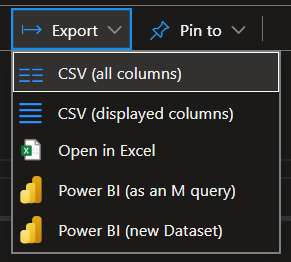
If you wish, you can then pull a CSV file based on the summary with the Export functionality in both Log Analytics and Advanced Hunting.
At this point, let’s take a moment to demonstrate how you can already put this simple data to use in your solution design efforts.
Design your sensitive service domain groups
With the report at hand, you can start designing your Endpoint DLP sensitive service domain groups to let you granularly allow, audit and block file uploads (with or without the possibility of overriding the restriction) to various domains – not based on feelings or guesswork, but on the actual services your organization is already using in the field.
For more on the practical steps to building sensitive service domain groups, see my earlier article.

Based on the report we build, we might for example..
- Create the domain group Authorized domains, configure an existing Endpoint DLP rule to Allow sensitive file uploads to the group and add the following domains to it:
- contoso-my.sharepoint.com – the company’s OneDrive for Business
- contoso.sharepoint.com – the company’s SharePoint Online
- copilotstudio.microsoft.com
- teams.microsoft.com
- outlook.office.com
- microsoft365.com
- I might also create the domain group Unauthorized domains and set an Endpoint DLP rule to Block uploads of documents labeled as Contoso Confidential / Internal Only to domains in it. Based on the report, I could add these two domains to the group:
- web.whatsapp.com – As moving around internal business data over WhatsApp is explicitly against company policy, we’ll opt to restrict sensitive data from being moved to that service.
- drive.google.com – Google consumer services aren’t an authorized tool for internal business data at Contoso.
- Finally, I’d set the DLP rule’s default action for file uploads to “Block with override” and additionally require a business justification for any overrides, letting employees upload sensitive content to all other domains not covered by either of the groups – but only after providing a written reason for the activity.
⚠️ Important note:
When designing Endpoint DLP solutions, I do not recommend asking for justification just to let business users know “big brother is watching.”
Instead, I recommend doing so to let business users raise data security admins’ awareness of all of the varied processes and tasks in the field admins don’t yet know about, so it becomes possible to further tailor the solution to business requirements and common patterns of activity.
I believe it is crucial to avoid an adversarial tension between security and business if you want to reach real-life security improvements. I suggest keeping this in mind when explaining your Endpoint DLP solution to business users.
In just a few short moments, we already built a useful file upload report with KQL and used it to fuel data-driven Endpoint DLP solution design.
Next, let’s pivot back to Log Analytics and dive deeper to see if we can craft more granular reports.
The IdentityInfo table
If you’ve enabled UEBA in your Sentinel deployment, you get access to the fantastic IdentityInfo table.

IdentityInfo really is an underappreciated 💎 gem for Purview solution design. The table synchronizes identity-related metadata to Log Analytics so you can use it to enrich your other query results with data points related to user identities, like:
- Job title
- Department
- Group membership
- Manager

When we’re trying to understand organizational usage trends around file uploads to various services, having this additional metadata at hand is quite valuable. During the design phase for a new DLP solution, I tend to look at event trends and anomalies through a role-based lens, splitting accumulated events by job title or department.
This helps get you as an architect a step closer to the actual processes happening in the field. Most importantly, it lets you ask better questions from business.
For example, you can go from..
⁉️ “Why are users uploading stuff to Dropbox?”
to..
🔎 “Why are folks from a particular M&A team repeatedly uploading sensitive PDFs to Dropbox every Friday?”
The latter is something you can actually go and ask the manager of the particular M&A team, now that you know who they are based on IdentityInfo metadata.
When you do, you might then find out that the team uploads new and revised documents to a shared Dropbox folder used by a partner organization every Friday as stipulated by their agreed-on working practices, to keep external consultants, legal advisors, and financial auditors updated.
OK, fine – a serious consultancy probably wouldn’t use a consumer Dropbox account for work purposes… but you get the idea, I think. 😉
In essence, this added context can change the way you look at DLP solution design. Imagine the disruption you would’ve caused if you would’ve just outright blocked all data uploads to Dropbox without talking with business first!
Adding identity enrichment to Purview audit log queries
To enrich our query with IdentityInfo data, we’ll modify it again. Pay special attention to the bolded parts at the beginning and end of the query – that’s where the magic happens.
let IdentityData = IdentityInfo
| where isnotempty(JobTitle)
| summarize LatestRecord = arg_max(TimeGenerated, *) by AccountUpn
| project AccountUPN, JobTitle;
CloudAppEvents
| where TimeGenerated >= ago(90d)
| where ActionType has "FileUploadedToCloud"
| project
TimeGenerated,
TargetDomain=tostring(RawEventData.TargetDomain),
TargetUrl=tostring(RawEventData.TargetUrl),
UserId=tostring(RawEventData.UserId),
UserKey=RawEventData.UserKey,
FileExtension=RawEventData.FileExtension,
Application=RawEventData.Application
| join kind=inner (IdentityData) on $left.UserId == $right.AccountUPN
| summarize count() by JobTitle, TargetDomain
With this simple tweak, a new layer of insight opens up. Now we have some actual context to what organizational roles are uploading stuff to each service.

What did we change in the KQL query exactly? Let’s break it down:
- First, we used the let statement to gather records from the IdentityInfo table into a variable called IdentyData. To be exact, we fetched only the newest entry for each identity that had the JobTitle value populated and we discarded most columns, aside from AccountUPN & JobTitle which we need to enrich our report.
- We added a join operator, matching the records from CloudAppEvents with those in our IdentityData variable. The join is done based on the UserId and AccountUPN attributes. This is possible because both of them consistently store the same value: the user account’s User Principal Name.
- Finally, we summarized the enriched events based on both JobTitle and TargetDomain. If we would need to, we could also add the more granular TargetUrl attribute to the summary to drill deeper.
The value of IdentityInfo naturally depends on whether or not your Entra ID identities are properly enriched with organizational data.
I talked about the importance and countless benefits of doing just that all the way back in early 2023 and I would say that the points I raised then are still very much relevant.
Exploring the angles
When you get comfortable with KQL and the structure of Purview audit logs, can look at the data you have from as many angles as your imagination allows. Common ways I regularly look at File Uploaded to Cloud events to help with solution design include ones like:
- Uploads to a specific service per job title per day, with events binned into day- or week-long segments to identify monthly or quarterly recurring processes and their timings.
- Reports listing most common types of sensitive information uploaded to each service
- Roles and departments uploading business content most frequently to services we are planning to restrict in the future (to help ask the right questions, as previously mentioned)
Practical example: Uploads to risky actively used cloud services by job title
An interesting and fun scenario I recently came up with revolves around building reports focusing on file uploads to exceptionally risky cloud services. The twist is that we use another data source to build reporting for services that we already know are actively used in the organization.
We can achieve this by first looking at Defender for Cloud Apps cloud app discovery reports – which themselves are based on a mix of Defender for Endpoint signals and potentially firewall logs – from which we can pull a list of domains to use to enrich our Purview reports.

💡 Tip:
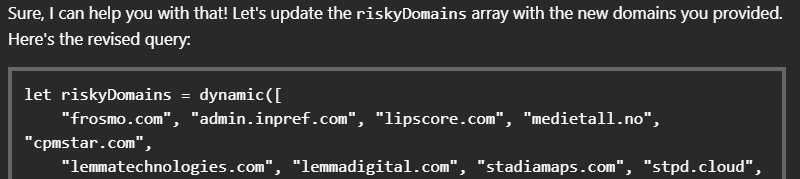
Getting comfy with GenAI helps you easily turn all sorts of chaotically formatted event and value dumps (like domain lists from MDA cloud app discovery reports) into valid KQL syntax for your queries. You only need to provide some formatting examples, which themselves you can save in Loop or OneNote for easy reuse.
Handling data normalization using my own pre-formatted GenAI prompting templates consistently saves me heaps of work hours and the associated mental drain every week when working on solution architectures and details.
If turned into a refined query variant, this last scenario would look something like this:
let riskyDomains = dynamic([
    "jpg2pdf.com", "otherRiskyDomain.com"
]);
let IdentityData = IdentityInfo
| where isnotempty(JobTitle)
| summarize LatestRecord = arg_max(TimeGenerated, *) by AccountUpn
| project AccountUpn, JobTitle;
CloudAppEvents
| where TimeGenerated >= ago(90d)
| where ActionType has "FileUploadedToCloud"
| project
    TimeGenerated,
    TargetDomain=tostring(RawEventData.TargetDomain),
    TargetUrl=tostring(RawEventData.TargetUrl),
    UserId=tostring(RawEventData.UserId),
    UserKey=RawEventData.UserKey,
    FileExtension=RawEventData.FileExtension,
    Application=RawEventData.Application
| join kind=inner (IdentityData) on $left.UserId == $right.AccountUpn
| extend DomainIsRisky = iff(TargetDomain in (riskyDomains), True, False)
| where DomainIsRisky == "1"
| summarize count() by TargetDomain, DomainIsRisky, JobTitle
| sort by count_ desc
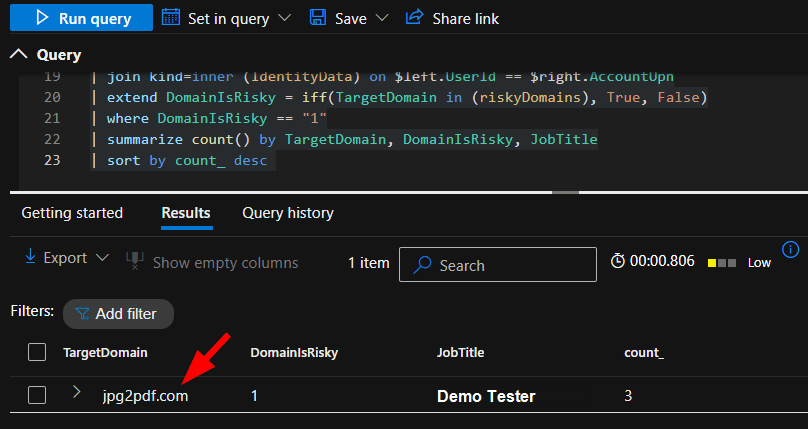
And an example of the result:
That’s all for this one. 👍
With the basics now covered, future entries should stay more concise, allowing us to dive right into informing Purview solution design through some clever KQL action!
 Seppala365.cloud
9 responses to “Purview KQL ninja: Cloud domain upload exfiltration”
[…] For a related article, see: Purview KQL ninja: Cloud domain upload exfiltration – Seppala365.cloud […]
LikeLike
For us the challenge has been reporting on file downloads to unmanaged devices. There are the IRM indicators for downloads, but no option to flag them if they are on unmanaged (unsanctioned) devices.
LikeLike
I hear you. The most promising path forward there seems to be mandating session controls on unmanaged devices through the new built-in capabilities in Edge for Business. Should allow for consistent reporting of download activities: https://learn.microsoft.com/en-us/defender-cloud-apps/in-browser-protection
LikeLiked by 1 person
For justifications. Where do you see the entry in the DLP activity log? I’m looking to report on all the files uploaded with a justification/override. I’m guessing it would require a custom report.
LikeLike
DLP block override business justifications are stored in the Justification attribute on the DLPRuleMatch event 👍
LikeLike
Thank you for these articles on DLP. I am so so grateful. I feel that Purview documentation has been so poor in my research. You are the first person I have found that demonstrates ways to best use Purview and actually goes over useful real world examples.
I cant thank you enough – I look forward to reading everything else you have to publish on these topics.
LikeLike
Thank you kindly! I agree, documentation is so-so. I have a mountain of topics to cover, if onmy there were more hours in the day.. 😎
LikeLike
Hi, I really enjoyed your session at NIC, looking for slides from your presentation about advanced hunting for USB sticks in use. Where can I find it? Thank you.
LikeLike
Hey, thanks! You can find the specific slides under Sessions and Slides heading, or through this link: https://seppala365.cloud/wp-content/uploads/2025/09/supercharge-your-endpoint-dlp-solution-with-advanced-hunting-and-ai.pdf
LikeLike